User Guide
With our Air WP Sync for WooCommerce plugin you can connect an Airtable database to your WooCommerce website, to easily manage your store outside of WordPress admin panel.
Installation
To install the Air WP Sync for WooCommerce plugin, follow these steps:
- Download the zip archive of plugin on your computer.
- Log in to your WordPress dashboard.
- In the WordPress dashboard, go to Plugins > Add Plugin.
- Click on Upload plugin button at the top of the page.
- Click on Choose File button and select the plugin file you downloaded in step 1.
- Click on Install Now button.
- Wait for the plugin to be installed, and then click the Activate Plugin button.
Please note that the WooCommerce plugin must be installed and activated to enable the Air WP Sync for WooCommerce plugin.
Set up your plugin
Before using your Air WP Sync for WooCommerce plugin, it must be configured with your license and the Airtable token enabling access to your Airtable database.
Before starting the wizard, which will help you quickly configure the plugin, prepare your plugin license key and Airtable token:
- The license key is available both in your purchase confirmation email, as well as on wpconnect.co > My Account > My Downloadable Products > License Keys, View Licenses. You will then be redirected to the purchase page of your product. Click on the key icon to see the license number appears which you can copy later.
- Log in to your Airtable account to define your token:
- Click on the Builder Hub menu item in your account drop-down menu.
- Click on Personal access tokens in the left side menu.
- Click on + Create new token button.
- Give your token a Name and follow the instructions given by our wizard for the Scopes and Access to configure it.
- Click on Create token button.
- Leave the pop-up displaying your token open; we'll be back in a moment to copy it. In Your token has been created pop-up, click on Copy button then click on Done button to close it.
For the plugin to work properly, you must set:
- Scopes: data.records:read, data.records:write, schema.bases:read and schema.bases:write
- Access: All current and future bases in all current and future workspaces
If you need help to create the token, see this video to learn how create a token in Airtable.
To start the wizard: click on the Air WP Sync for WooCommerce menu in the WordPress dashboard, and the wizard will appear.
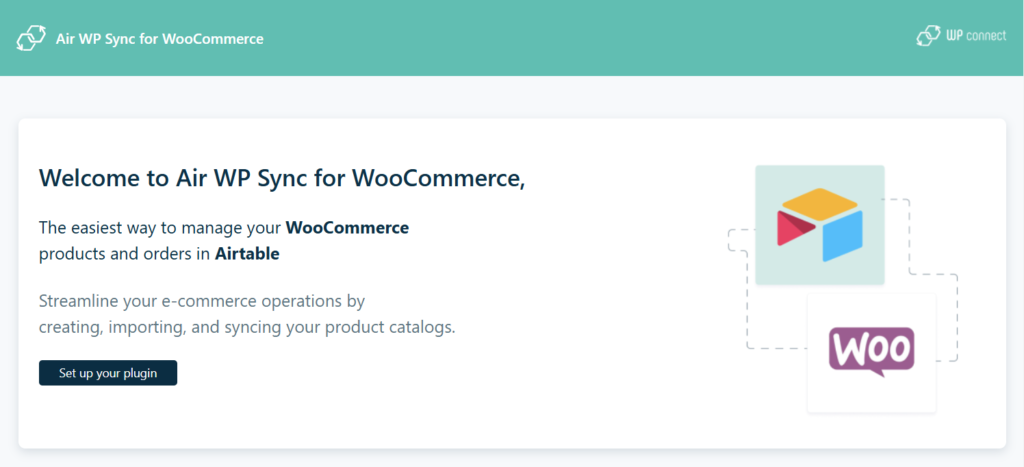
Follow these steps:
- Click on Set up your plugin button.
- If you want to activate Air WP Sync plugin, switch the option Air WP Sync is deactivated and click on the Next step→ button. See Air WP Sync Activation for more information.
- Go to your WP connect account, copy your license and paste it into Licence Key field, then click on the Next step→ button.
- Go to your Airtable account, and in Your token has been created pop-up, click on Copy button then click on Done button to close it.
- Go back to the wizard and paste the token into Access token field.
- Click on Next step→ button: your plugin is configured!
- If you wish to continue by configuring the connection to your Airtable base, click on the Connect to Airtable base→ button to define the parameters.
Don't log out of your Airtable account for the moment.
First connection to Airtable database
If you've clicked on the Connect to Airtable base→ button at the end of the setup wizard, or if you click on the Air WP Sync for WooCommerce menu item in the WordPress dashboard, you'll access the wizard which allow you to connect your plugin to the Airtable database.
Now, we are going to connect the plugin to our Airtable base template, created to facilitate products connections (synchronizations).
This template will be copied to the workspace which you given access before.
Don't rename or modify the template before the copy and your first successful connection.
Check the version of the template.
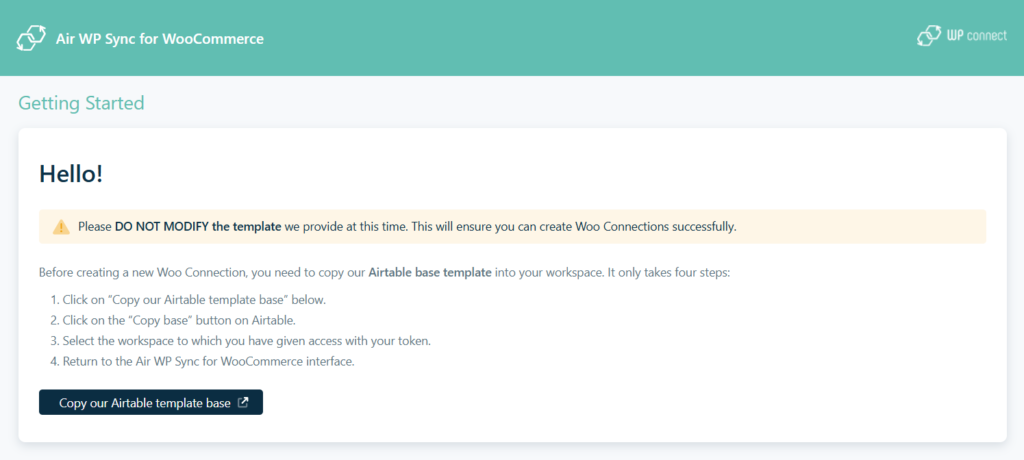
The copy and the connection will be done by four steps:
- In WordPress, click on Copy our Airtable template base button: our Airtable base template is displayed in a new Airtable tab.
- In this Airtable tab, click on Copy base button (located to the right of the template name at the top of the page).
- Select the workspace you require, and click on Add base button.
- Go back to Air WP Sync for WooCommerce interface: now you see that Air WP Sync for WooCommerce Template is connected to the plugin.
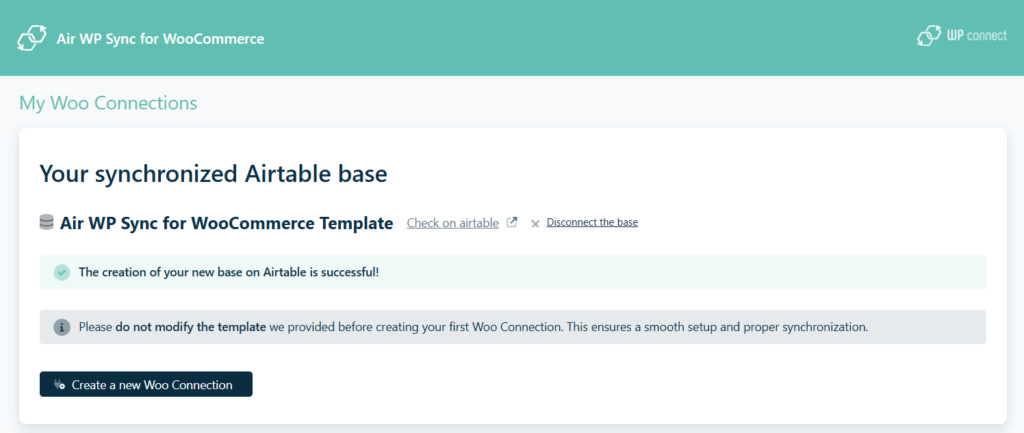
Now we can define a first Woo connection to import products in WooCommerce plugin.
Woo Connections
Create a first Woo connection
A Woo connection lets you swiftly import products in your store.
Check that there are no error messages and that everything is ready, before create your first Woo connection.
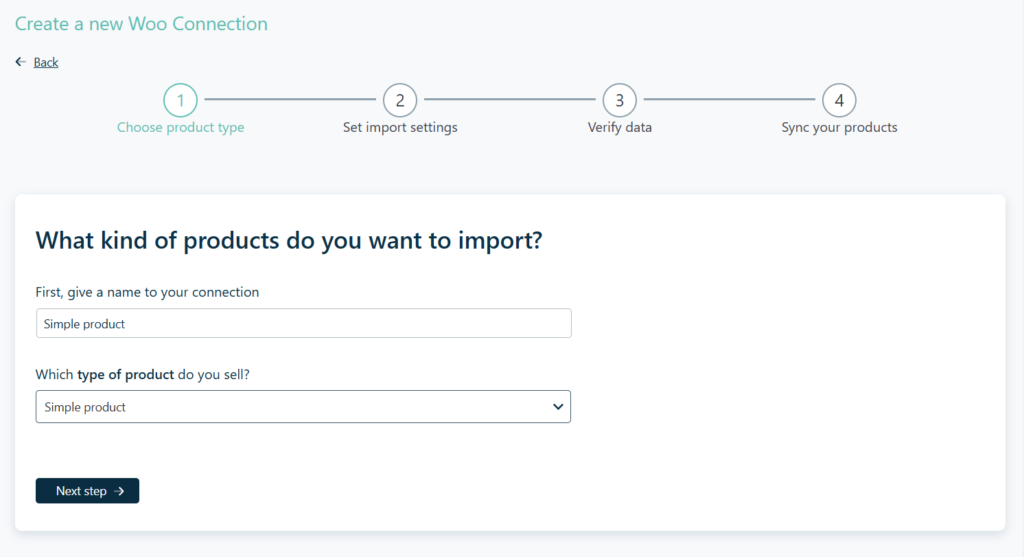
Click on Create a new Woo connection button and follow these wizard steps:
1. Kind of products:
- Give a Name to your first Woo connection.
- Select the Type of product. These are the 4 product types offered by WooCommerce, to which we have added the Downloadable type, which is in fact a particular configuration of the Simple Product type.
- Then click on Next step→ button.
2. Import settings:
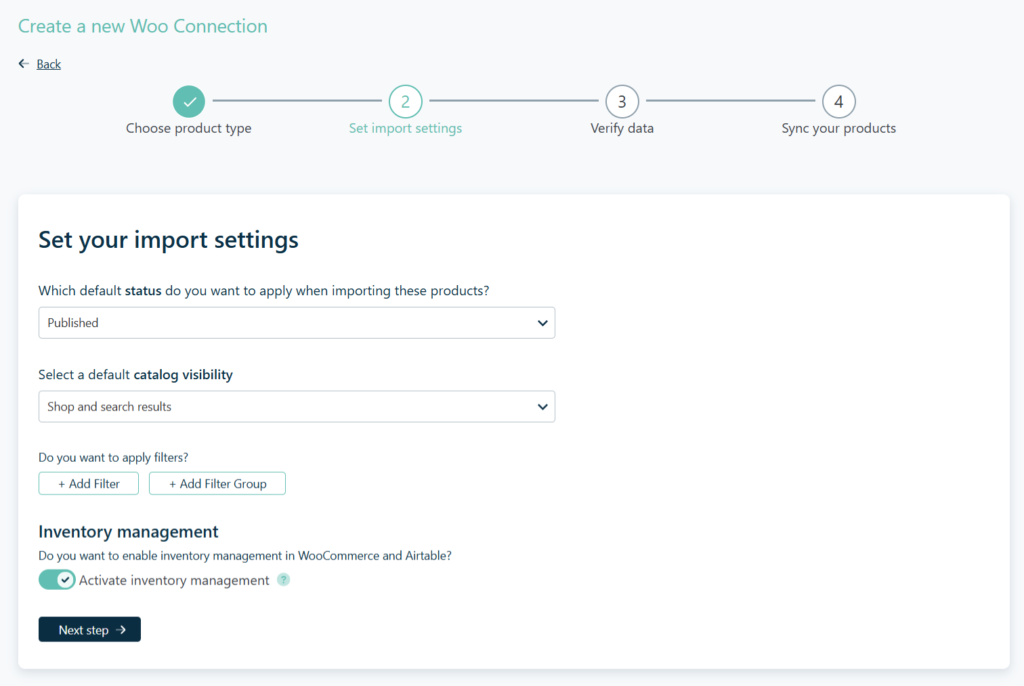
- Choose a default Status for the future imported products. This is the publication status of the product sheet. The status values are: Published, Scheduled, Draft, Pending and Private, respectively in Airtable: publish, future, draft, pending and private.
If a status is already defined in your Airtable database, it will take precedence over the default status.
Notes:
- at the first connection, you can't select the Scheduled status.
- Scheduled status will have better support in a future version of the plugin.
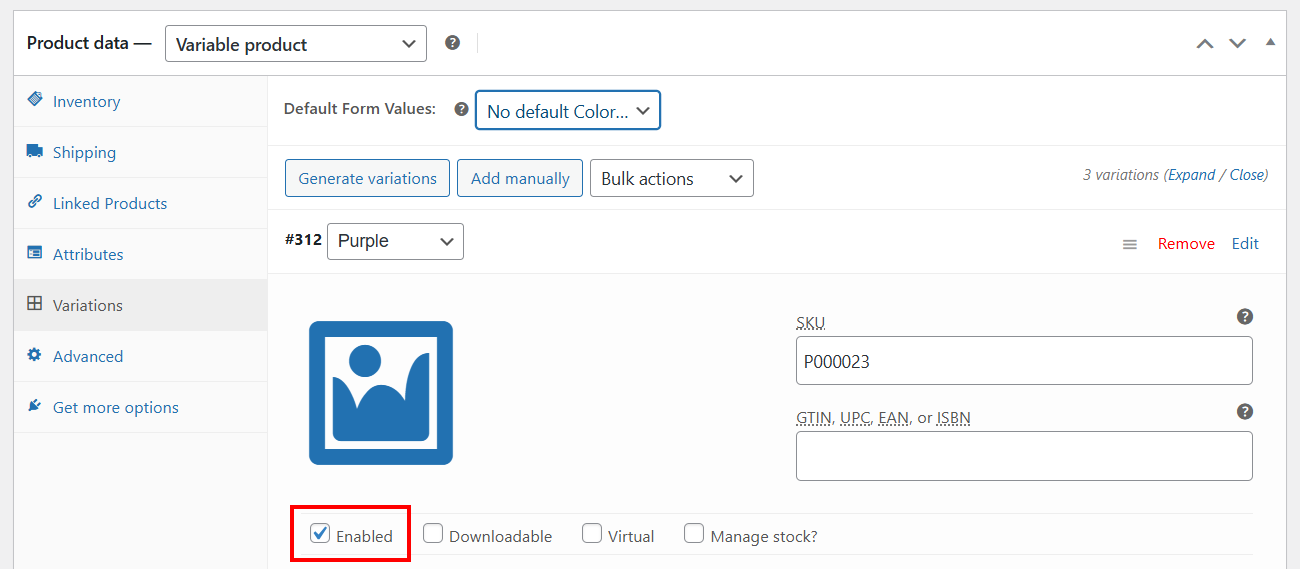
For Variable products, the plugin only supports the two statuses "publish" and "private", which correspond respectively in WooCommerce to the activation or non-activation of the "Enabled" option in the Variations tab. If you import variable products with "publish" status, then the "enabled" option will be checked in WooCommerce.
- Select a default Catalog visibility. This is the visibility of the product in the store. It can be present only on the page presenting the products (Shop only) or on the search results page (Search results only), present everywhere (shop and search results, categories pages), or hidden everywhere (Hidden). In Airtable, the corresponding values are in order: catalog, search, visible and hidden.
If a catalog visibility is already defined in your Airtable database, it will take precedence over the default catalog visibility.
- Optionally, add filters by clicking on + Add Filter or + Add Filter Group button. For more information, see the paragraph Add filters to Woo connections below.
- Disable or leave enabled the option Activate inventory management, and click on Next step→ button. For more information see the paragraph Inventory management below.
3. Verify the mapping:
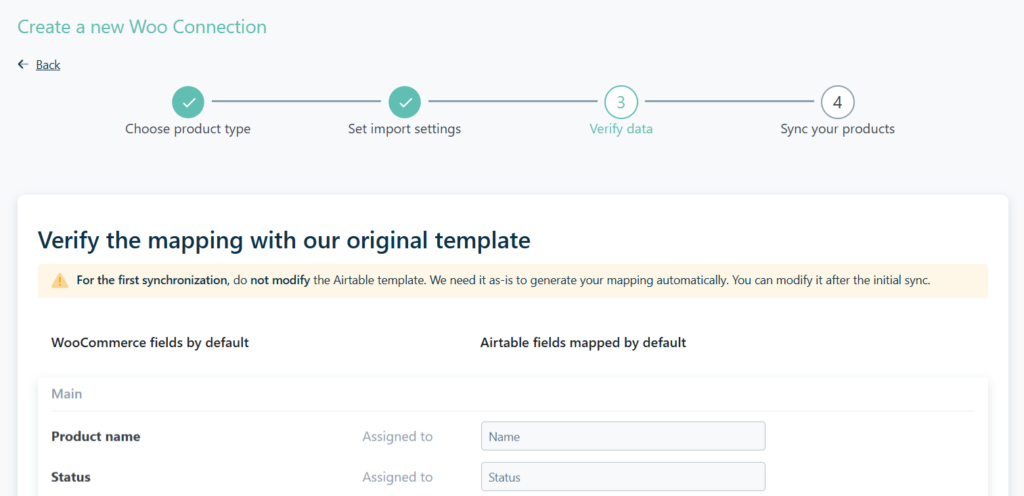
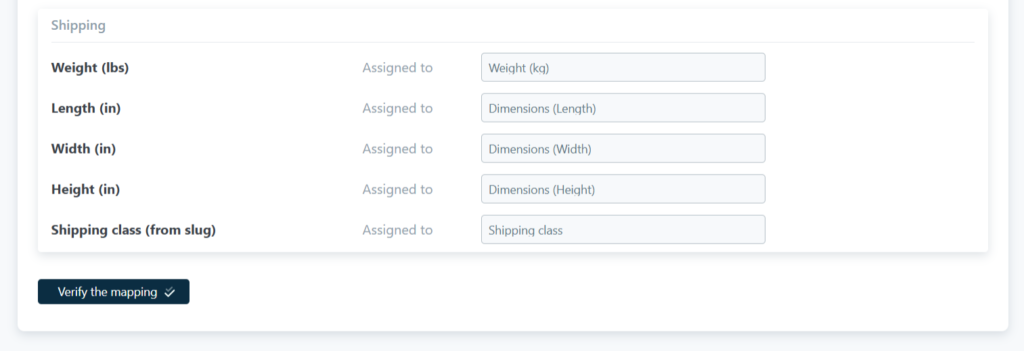
Check if the mapping is correct by clicking on Verify the mapping button. Once the verification is done, click on Next step→ button.
You cannot modify the fields mapping of the first product connection.
4. Final details:
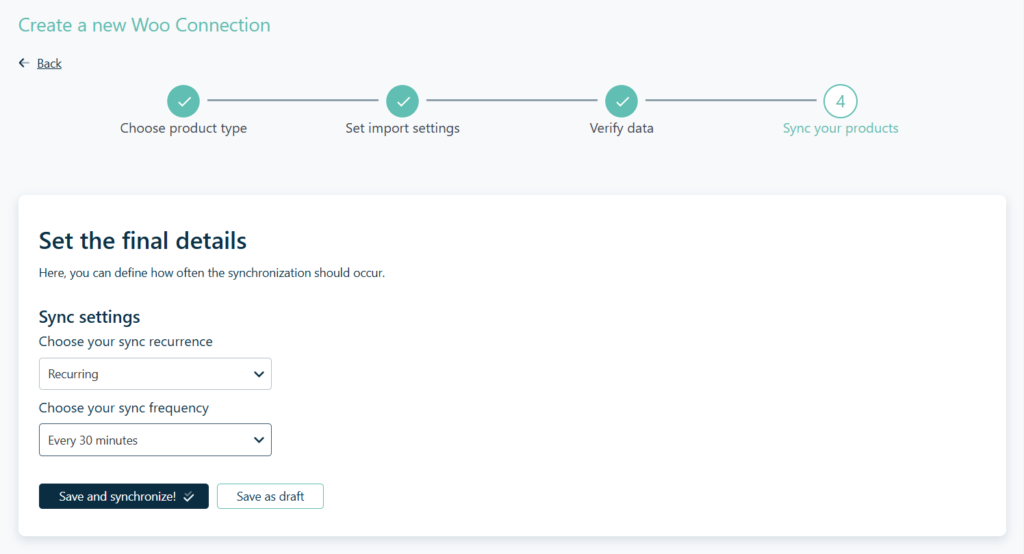
Define the Sync recurrence by choosing:
- Manual. You will need to access the Woo connection each time you wish to synchronize products.
- Recurring. Then choose your sync frequency. Products are automatically synchronized at the selected frequency.
Click on Save and Synchronize! button to publish the connection and synchronize the products or Save as draft button to save the Woo connection as a draft.
The highest synchronization frequency is currently 30 minutes.
Instant synchronization via a webhook will be implemented in a future version.
If you click on the Save and synchronize! button, sync starts and the wizard displays a progress bar, and estimates the time needed to synchronize your products.
If the delay is too long, or if a problem occurs and synchronization seems to be making no progress, you can interrupt synchronization by clicking on Stop the import.
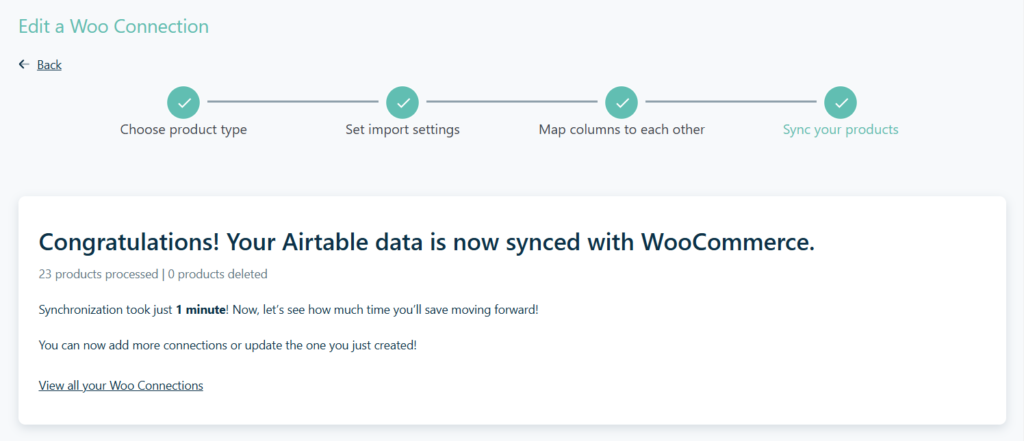
When synchronization is complete, a message is displayed with the duration of the synchronization and your products have been successfully imported into WooCommerce.
Add a new Woo connection
To add a new product connection, use the same wizard as the first time.
This wizard is available by clicking on the Air WP Sync for WooCommerce > Woo Connections > Add New menu or Air WP Sync for WooCommerce > Woo connections menu, then click on Create a new Woo Connection button.
Reminder: to add a new Woo Connection, you must have already copied our template into your Airtable workspace as described above.
Modify a Woo connection
To modify a Woo connection, follow these steps:
- Click on Air WP Sync for WooCommerce > Woo Connections menu.
- In the list of My Woo Connections, hover over the Woo connection you wish to modify, then click on Edit.
- The last screen of the wizard is displayed, and to modify the settings you can use the ←Back links to reach the desired screen.
- Edit all of desired settings and click on Next Step→ until you reach the last screen of the wizard.
- And click on Save modifications and Sync! or Save modifications button.
If you click on Save modifications the Woo connection is saved (and published) and the message "Connection published" is displayed.
If you click on Save modifications and Sync!, the Woo connection is saved and published) and the sync starts.
You can also unpublish the Woo connection by clicking on Switch to draft, or delete the Woo connection by clicking on Move to trash.
Add filters to Woo connections
In step 2 of the connection creation process, you can add one or more filters.
To define a filter:
- Click on +Add Filter button.
- Select a field on Airtable base, then select an operator (a different list is proposed depending on the type of field selected) and type a value.
You can add further filters by clicking on the +Add filter button again, and you can define the logical operator (AND/OR) to be used to associate these filters (or conditions) by selecting it.
If you want to define more complex filters, use filter groups, which can also be combined with the logical operators AND and OR.
To define a group filter:
- Click on +Add Filter Group button.
- Click on +Add Filter or +Add Filter Group button.
- Define each filter or filter group by selecting fields, operators and entering values.
- Select the logical operator AND or OR to associate the filters or filter groups.
To delete a filter or filter group, click on the trash icon associated with it.
Regular Connections
If you have activated the Air WP Sync option in the plugin settings, you can then use Regular Connections to import from Airtable content such as pages, posts, CPTs, users, and taxonomy terms. See the Air WP Sync documentation to learn more about its features.
Inventory Management
In step 2 of the connection creation process, you can see that the Activate inventory management option is checked by default.
When the option is activated: each order will modify the product's stock, adding a row to the Stock transactions table in Airtable, and the value of the Stock / Quantity field in the Products table will then be updated.
When the option isn't activated: the Stock transactions table does not record stock variations linked to orders, and the stock of each product is not managed in Airtable, but only in WooCommerce.
Mapping
Description of mapping
The fields are grouped into different sets with a common theme as:
- Main - Fields describing the products, i.e Name, Description, Status, Categories, Tags, Product Image, etc.
- General - Fields concerning price and taxes, i.e Regular price, Sale price, Tax status, Tax class, etc.
- Inventory - Fields concerning the stock, i.e SKU, Stock quantity, Low stock threshold, etc.
- Linked Products - The fields Upsells and Cross-sells.
- Shipping - Product size/weight fields, i.e Weight, Length, Width, Height, etc.
- Added fields - The fields that you add.
Mapping fields will differ according to the Type of product selected and whether or not the Activate inventory management option is enabled.
Modify the mapping
Once the first synchronization has taken place, and only then, you can customize the mapping by adding or deleting fields.
Add a field
To add field to the mapping, you need open the Woo connection, and use ←Back links to access to the fields mapping:
- Then click on Add field button: a row is added in the Added fields section.
- Choose the WordPress field from the drop-down list, and for the field from the Airtable base, there are two possible cases:
- It is automatically selected by the wizard, because it's a part of pre-configured fields.
- Or you need to select it yourself in the drop-down list.
Delete a field
To delete a field, open the Woo connection and use ←Back link to access to the fields mapping then click on the Trash button at the end of the right-hand line: the line is deleted without a confirmation message.
The required fields as Product Name, Regular Price, SKU, etc. can't be deleted.
When you have added or deleted a field in the mapping, you must save changes by clicking on Next Step→ button then click on Save Modifications button. You can also click on Save modifications and Sync! button to save changes and synchronize your data as of now.
Manage your Woo connections
To manage your Woo connections, click on Air WP Sync for WooCommerce > Woo connections menu, scroll down to access to the list My Woo Connections.
In this list, you can see for each Woo connection: the Title (name) of the connection, the product type, the date of last synchronization, the selected trigger and the actions you can perform.
Woo connections can have different statuses, such as Published or Draft, or can be placed in the Trash.
In the My Woo Connections list, you can perform these actions:
- Synchronize the products of a Woo connection by clicking on the corresponding Sync Now button.
- Download the last synchronization logs for a Woo connection by clicking on the corresponding Download logs button.
- Use pre-designed filters to sort connections, i.e All, Published, Draft, Trash.
- Search a product connection by typing keywords in the search field and click on Search Woo Connections button. If one or several Woo connections match with the keywords, they will be displayed in the list.
- Click on the arrows to the right of the Title heading to sort Woo connections alphabetically from A to Z or Z to A.
- Modify a Woo connection by clicking on Edit link that appears when you hover over the connection name. In this case, you come back in the wizard and you can modify the product connection by using ← Back links to change the settings of the product connection. Don't forget to save the modifications at the end of the wizard.
- Move a Woo connection to trash by clicking on Trash link that appears when you hover over the connection name.
- Select all Woo connections by clicking on the checkbox to the left of Title in the header of the table to apply one of the Bulk actions.
- Select one or more connections by clicking on the corresponding checkboxes in front of their Title and perform a Bulk action.
- If the active filter is All, Published or Draft, you can select multiple Woo connections and perform Bulk actions such as Edit or Move to trash, by selecting the desired action from the drop-down menu and clicking the Apply button. If you choose Edit you can only modify the status of the selected Woo connections.
- If you have previously selected the Trash filter, the available bulk actions are: Restore and Delete permanently.
Airtable Database
Access to the Airtable database
To access quickly to the Airtable database:
- Go to Your synchronized Airtable base section in the Woo Connections screen, by clicking on Airtable WP Sync for WooCommerce > Woo Connections menu.
- Click on Check on Airtable link.
- Login to Airtable if needed.
- The database used in Air WP Sync for WooCommerce plugin is automatically displayed.
Disconnect the Airtable database
If you wish to change the database connected to the Air WP Sync for WooCommerce plugin:
- Go to the Your synchronized Airtable base section in the Woo Connections screen, by clicking on Airtable WP Sync for WooCommerce > Woo Connections menu.
- Click on the Disconnect the base link.
- In the pop-up window, click on Yes, I want to disconnect my base button to break the link with your database.
- Or click on No, keep it button to cancel the disconnection.
All connections to this database are deleted, as indicated by the pop-up message. The imported products are preserved.
Plugin Settings
You can access to the plugin settings by the Air WP Sync for WooCommerce > Settings menu.
In this section, you can activate the Air WP Sync plugin, manage your license and Airtable token, and clear the cache.
Air WP Sync Activation
By default, the Air WP Sync option is deactivated. But, if you want continue to use the features of Air WP Sync Pro/Pro+ to sync pages, posts, CPTs, users, and taxonomy terms, activate this option then click on Save→ button. Air WP Sync Pro+ is then activated. See the plugin documentation.
If you're already using Air WP Sync Pro, you'll benefit from Air WP Sync Pro+ at no extra cost.
Whatever version of Air WP Sync you are using, your current connections have been preserved, you can access them by Air WP Sync for WooCommerce > Regular Connections.
License
In the License section, you can see the License Key that you have entered during the set up wizard.
You can modify this License Key by entering a new license and click on Save→ button.
Airtable
In the Airtable section, you can see a part of your Airtable token added during the set up wizard.
If you modify this token in your Airtable account, you need to paste the new token in this field and click on Save→ button. Your connections will be automatically updated.
Cache
This feature can be used when you've modified the structure of your Airtable table and don't see these changes in Air WP Sync for WooCommerce.
In this case, click on Clear Cache→ button to force the plugin to reload the Airtable data.
Support and Documentation
Get Support
To get support click on the Air WP Sync for WooCommerce > Support menu. You are redirected to a new tab with our WP connect Support center where you can post a ticket describing your problem or request, after logging in.
Read the documentation
You can access to this documentation by clicking on the Air WP Sync for WooCommerce > Documentation menu. A new tab with the plugin's documentation will be open in your browser.
Limitations
These third-party plugins aren't supported:
- WooCommerce Bookings
- WooCommerce Shipping
- WooCommerce Subscriptions
- WooCommerce Product Add-Ons
- WooCommerce Tax
- WooCommerce Box Office
- WooCommerce Memberships
- Product Recommendations
- Composite Products
- Bundle Products
- Extra Custom Product Options for WooCommerce
Troubleshootings
You've modified the structure of the Airtable template, but nothing has changed in the plugin interface: this behavior is normal because for performance reasons, the structure of your Airtable base are cached for 15 minutes. See above how to purge the cache.
If required, you can access logs via an FTP connection in this folder:
/wp-content/uploads/airwpsync-logs
And you can access the logs of the last synchronization from the Woo Connections screen: click on Air WP Sync for WooCommerce > Woo Connections menu then click on the Download logs button for the connection you are interested by.