How to Map Variable Products with Variations?
Variable products are one of the most powerful product types in WooCommerce: a single product sold in several versions, such as a T-shirt available in different colors and sizes. With Air WP Sync for WooCommerce, you can create the parent product and each of its variations directly in Airtable, then synchronize everything to your store with a single Woo Connection.
If you need a refresher on what a variable product is, take a look at WooCommerce Product Types Explained.
How variations are structured in the Airtable template
In the Products table of the template, a variable product is made of several records:
-
The parent product: the main record, with the Product type
variable. It holds the product name, description, and images. -
The variations: one record per attribute combination, with the Product type
variation. Each variation carries its own Attributes values (for example "Blue" and "XL"), its own SKU, its own Regular price, and its own Stock / Quantity.
The parent product is linked to its variations through the Variations field: this column must contain all the existing variations of the product. Note that the Attributes are assigned on the variation records, not on the parent product.
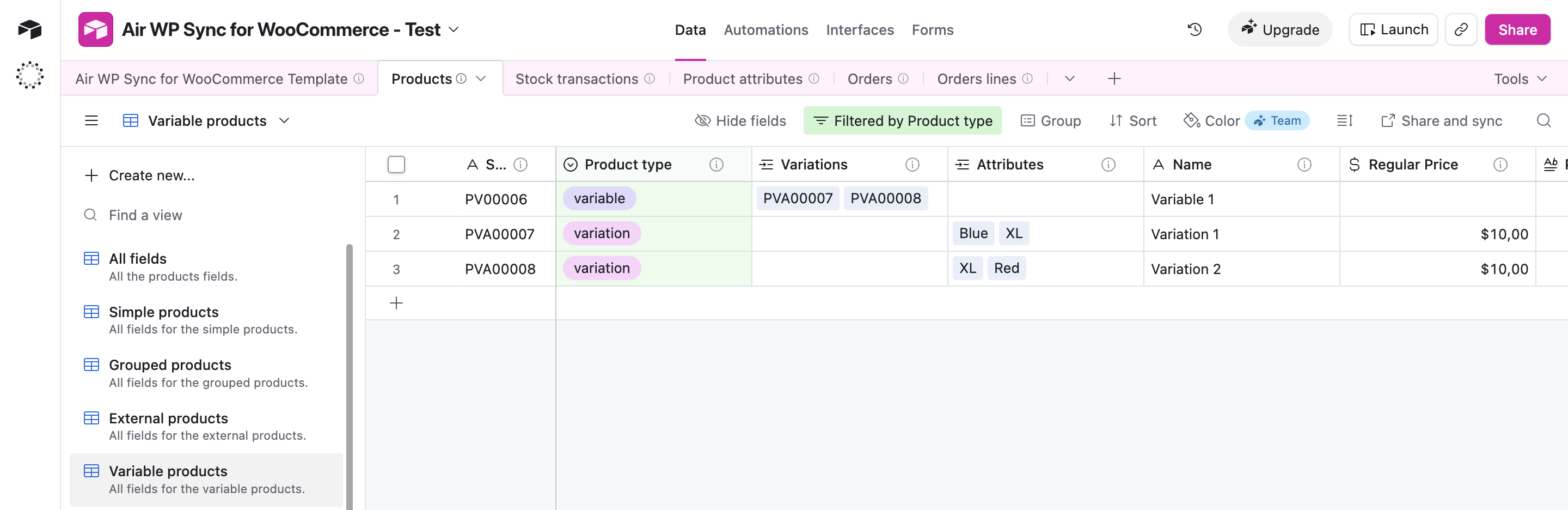
The Products table includes a Variable products view that displays all the fields needed for variable products and their variations.
Two other fields play a key role:
-
Attributes: the list of attribute values assigned to each variation. These values come from the Product attributes table and are automatically created in WooCommerce during synchronization.
-
Attributes keys: this field is filled in automatically (for example
Color:blue). It identifies each attribute combination and can only be mapped with the WooCommerce Variation (attributes) field.
For variable products, the Attributes field of the variations is essential. It is used to generate the variations based on the combinations of attributes (size, color, etc.), and each variation can then have its own price, image, and stock.
Step by step: mapping your variable products
1. Prepare your attributes
In the Product attributes table, define the values that will create your variations (for example the terms S, M, L for a Size attribute). Remember the fields Term name, Attribute name, and Visible on the product page: they are needed to properly import product attributes.
2. Create the parent product and its variations in the Products table
Add the parent product as a record with the Product type variable, then add one record per variation with the Product type variation, its own Attributes values, its SKU, its Regular price, and its Stock / Quantity. Finally, add all the existing variations to the Variations field of the parent product.
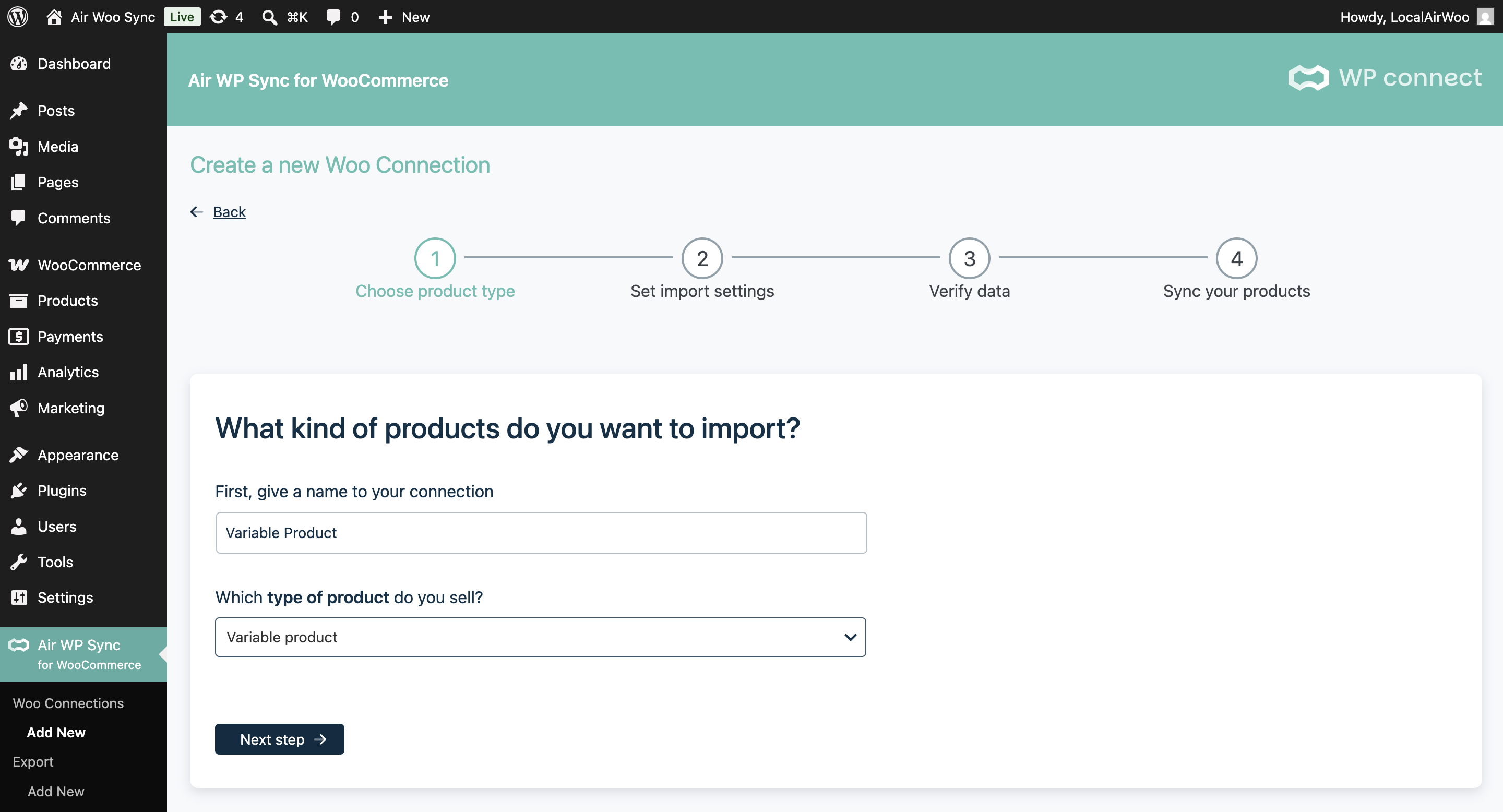
3. Create a Woo Connection with the Variable product type
When creating your Woo Connection, give it a name and select Variable product as the type of product you want to import. This determines which fields the plugin adds to the mapping.
4. Configure the import settings
Choose your default status and catalog visibility, and enable Activate inventory management if you want stock to be managed from Airtable.
For Variable products, only the "publish" and "private" statuses are supported. They correspond to enabling or disabling the "Enabled" option in the Variations tab of the product.
5. Map the variation fields
At the mapping step, make sure the variation fields are correctly set:
-
Attributes keys must be mapped to the WooCommerce Variation (attributes) field.
-
Add the field Variation (Track stock quantity for this product) to the mapping.
-
Add the field Variation (Stock quantity) to the mapping.
These two Variation stock fields appear in the Added fields section of the mapping. They are assigned to the Airtable fields Track stock quantity for this product and Stock / Quantity, and they allow each variation to manage its own stock quantity during synchronization.

6. Save your connection and synchronize
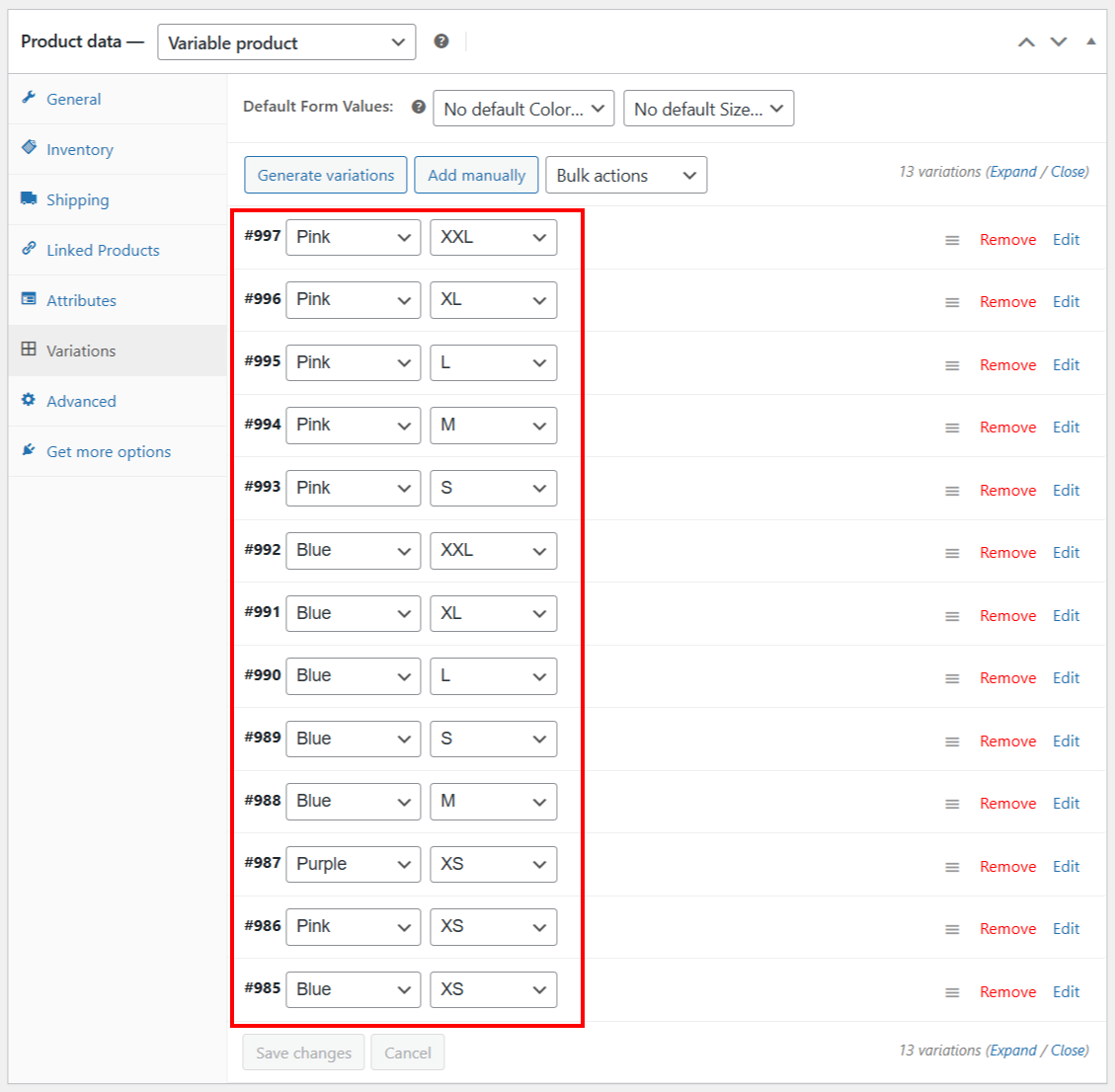
Save your Woo Connection and launch the synchronization. In WooCommerce, your attributes appear in the Attributes tab, and each combination appears in the Variations tab of the Product data meta box, with its own price, SKU, and stock.
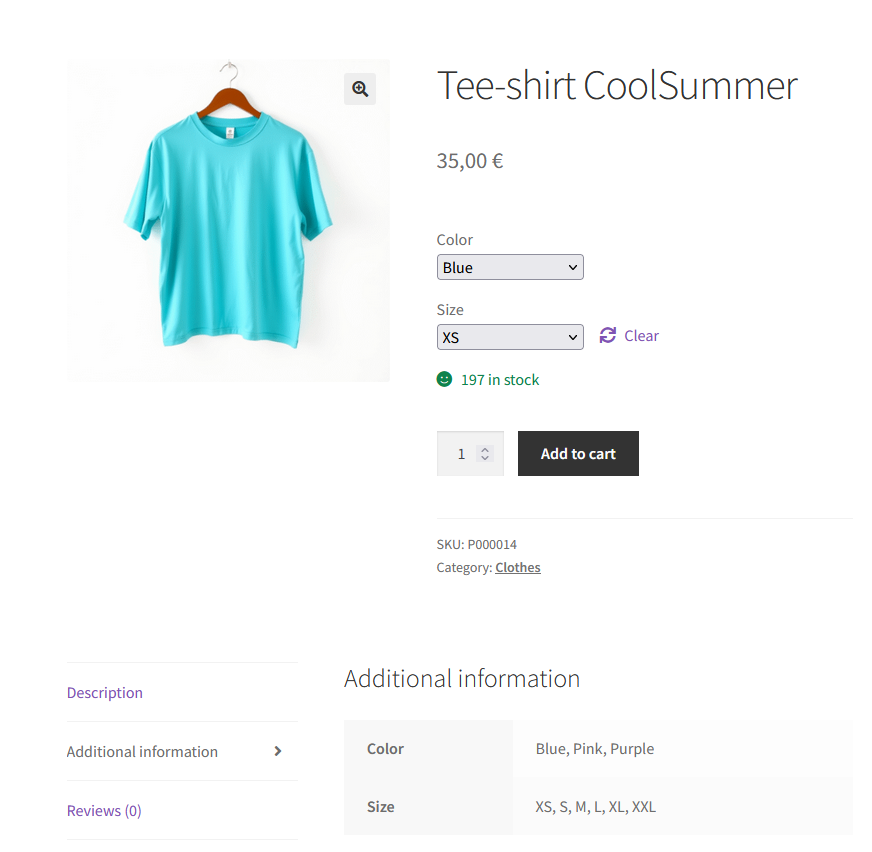
On the front end, your customers can now pick the options of your product:
Going further
To understand every field involved in the mapping (Attributes, Attributes keys, Variations, and all the others), read Understand the fields of the Products table to define your mapping.
To explore the structure of the template itself (Products, Product attributes, Stock transactions tables), see Airtable Template in Detail.
Get Air WP Sync for WooCommerce
Sell products in every size and color without the manual work: create your variable products in Airtable and sync them to WooCommerce with Air WP Sync for WooCommerce.
Discover Air WP Sync for WooCommerce →