How to Update Existing Products?
Once your products have been exported into the Airtable template (see How to Export Products to the Template), you'll probably want to keep them up to date from Airtable, updating prices, stock, descriptions, and more.
This article explains how to update existing products instead of creating duplicates, by choosing the right synchronization key.
Why you need to change the sync key
By default, Air WP Sync for WooCommerce matches products using the Airtable Record ID. That works fine to create products, but to update products that already exist in WooCommerce, the plugin needs a stable, shared identifier.
That identifier is the SKU. By syncing on the SKU, the plugin can recognize an existing product and update it instead of creating a new one.
⚠️ Important: for this to work reliably, the template must remain the original, unmodified template we provide. Make sure it hasn't been altered before running the sync.
Step by step: updating existing products
1. Create an Import connection
Create a new Import connection as you normally would, connecting your Airtable base to WooCommerce.
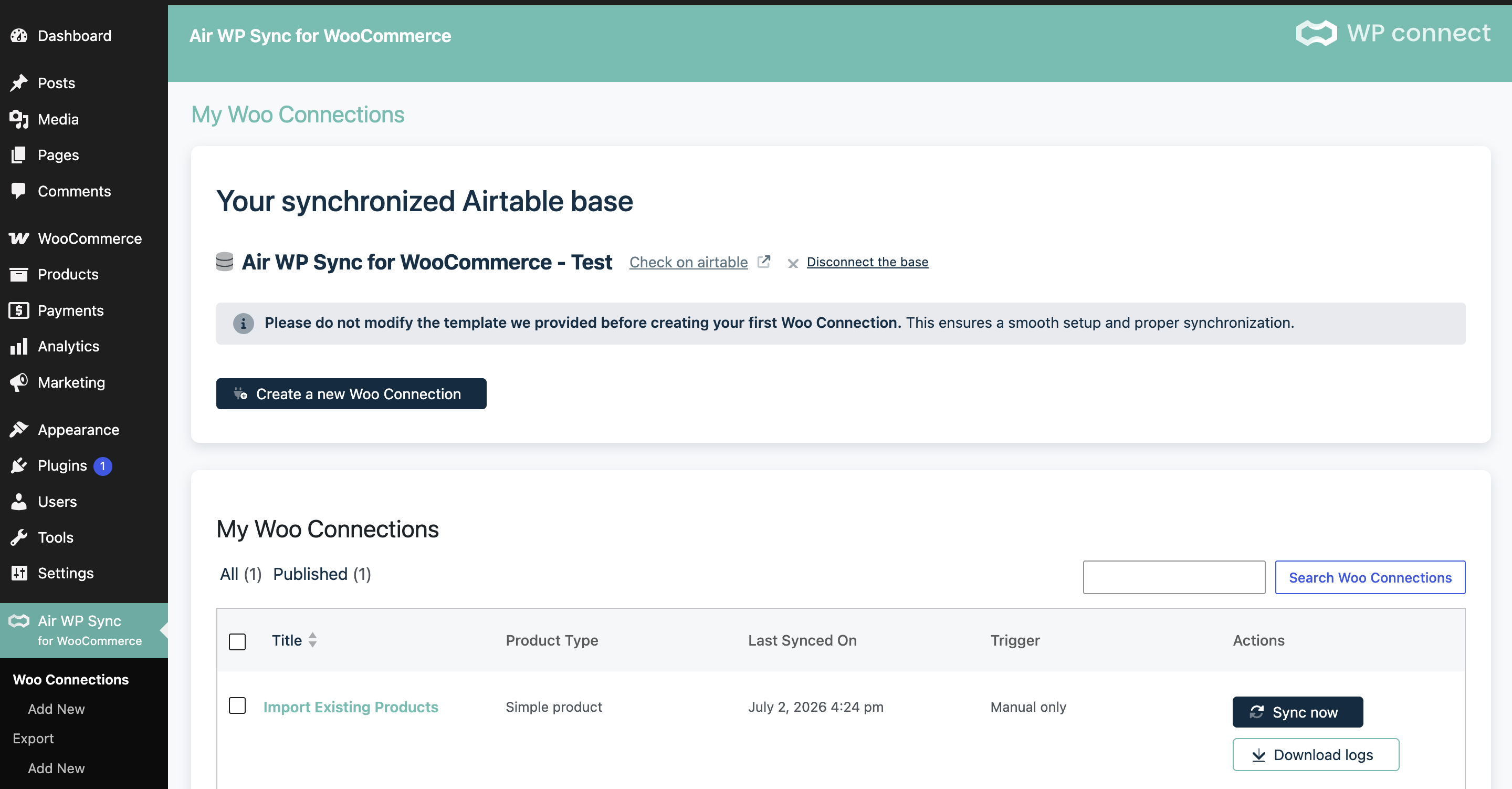
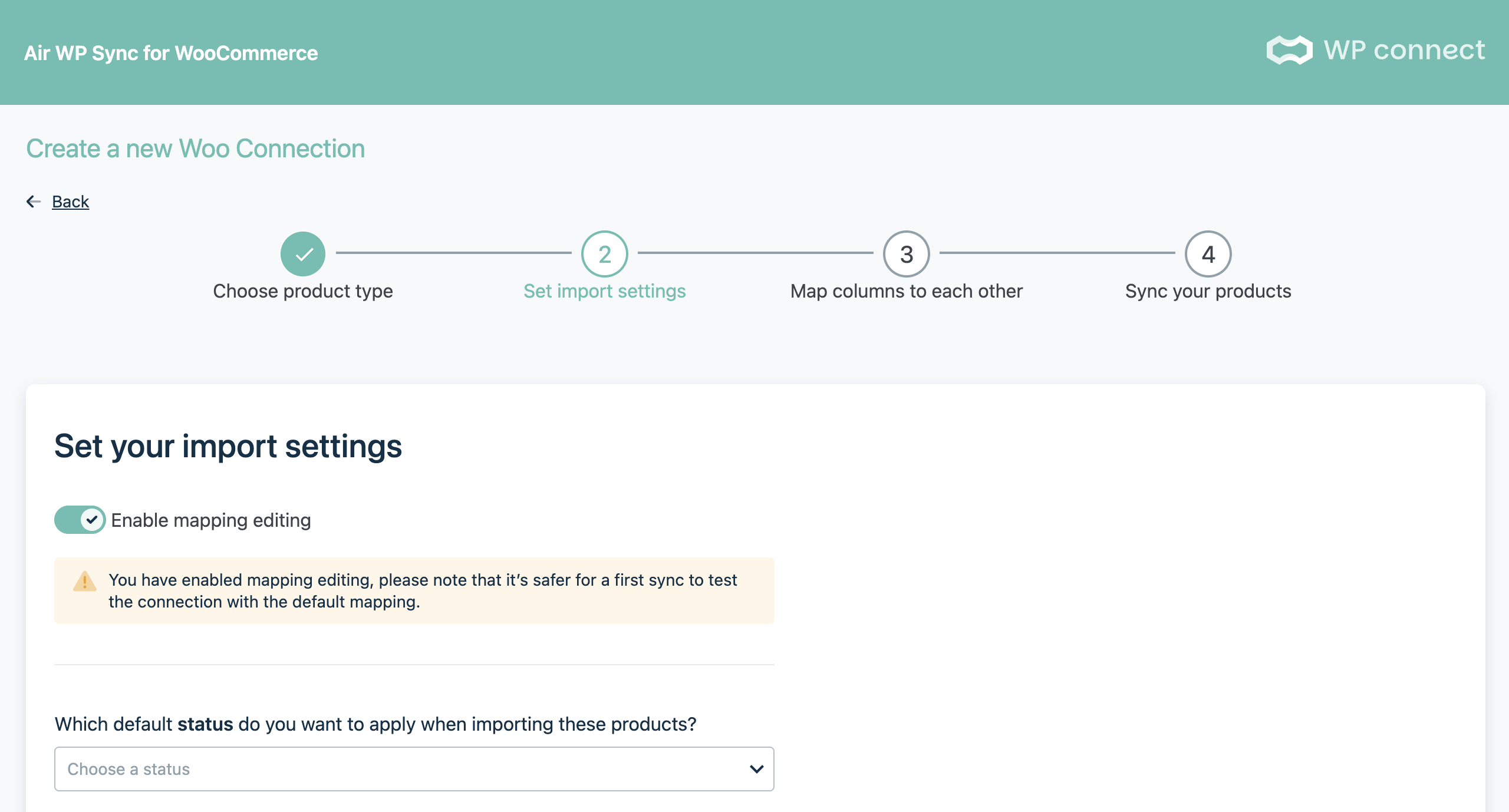
2. Turn on "Enable Mapping"
In the connection settings, activate the new Enable Mapping option. This unlocks the ability to change the key used to synchronize your products.
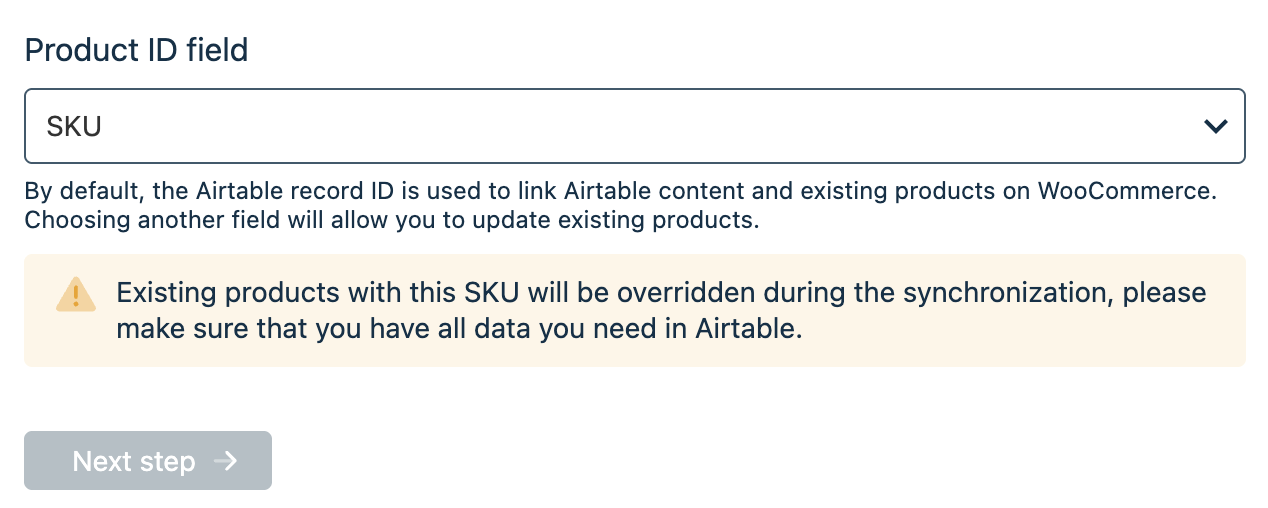
3. Choose the SKU as the sync key
With mapping enabled, select the SKU as the field used to match products. From now on, the plugin will update existing products based on their SKU instead of the Airtable Record ID.
4. Adjust the mapping (if needed)
If necessary, review and adjust the field mapping so that the correct data is updated on your products.
5. Run the synchronization
Launch the sync. Your existing products will now be updated from Airtable instead of being duplicated.
Keep your products up to date automatically
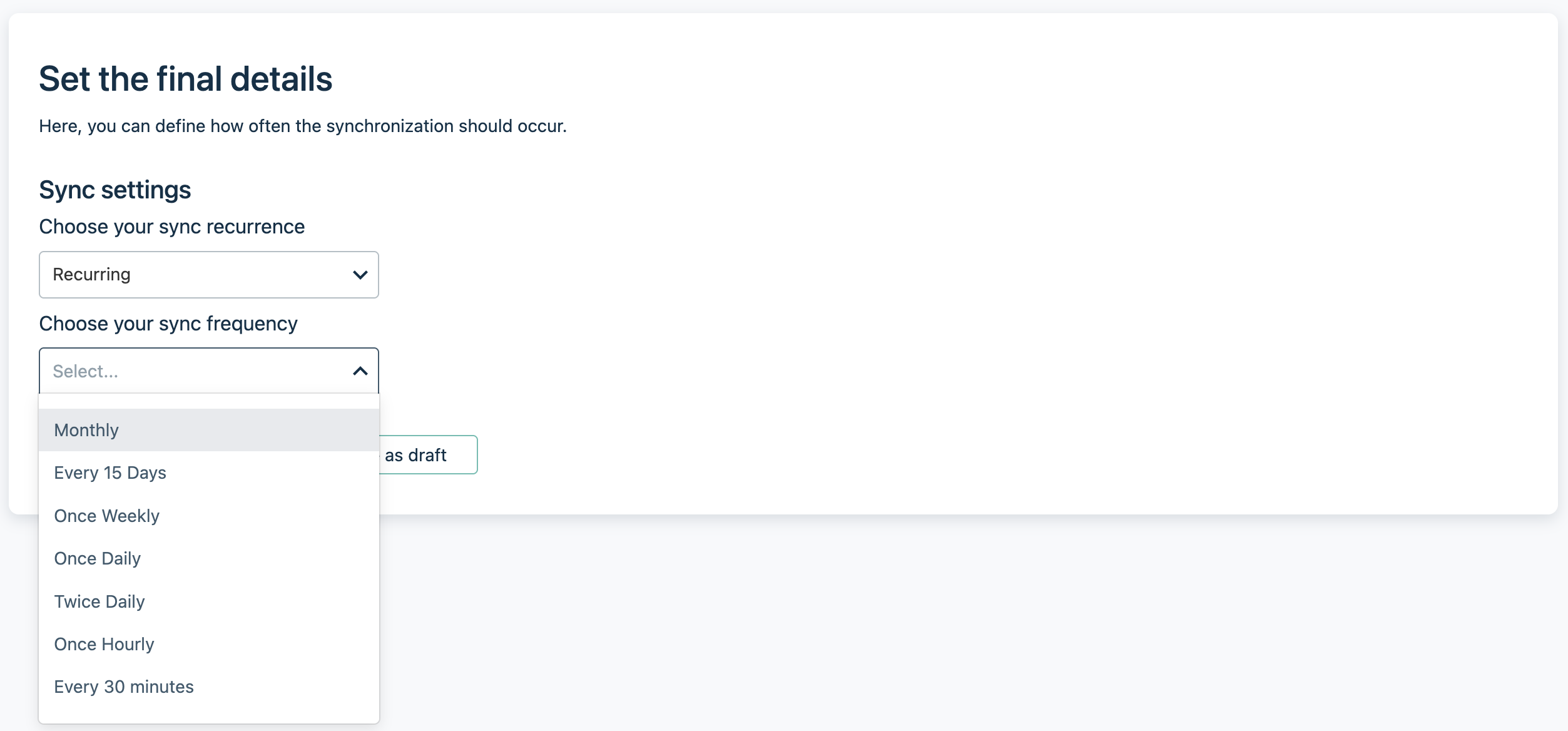
To create an update cycle, set the connection to Recurring mode in the last step. You can then have your products synchronized automatically: once a day, once a week, or at whatever interval fits your workflow.
With this in place, you can fully manage all of your products directly from Airtable, and let Air WP Sync for WooCommerce keep WooCommerce updated for you.
If you run into any issue, contact our support team and share your Airtable base and connection configuration.
Get Air WP Sync for WooCommerce
Ready to manage your WooCommerce catalog from Airtable? Update your existing products, sync on the SKU, and automate everything with Air WP Sync for WooCommerce.
Discover Air WP Sync for WooCommerce →