How to Use the Delete Strategy and the Sync After Connection Trigger in Air WP Sync?
Air WP Sync keeps evolving! Two new options are now available in the Sync Settings of your connections: the Delete import strategy and the "After the connection below has been synced" trigger. This article explains what each one does and when to use them.
If you need a refresher on the existing strategies and triggers, read How to use the Sync Settings in Air WP Sync first.
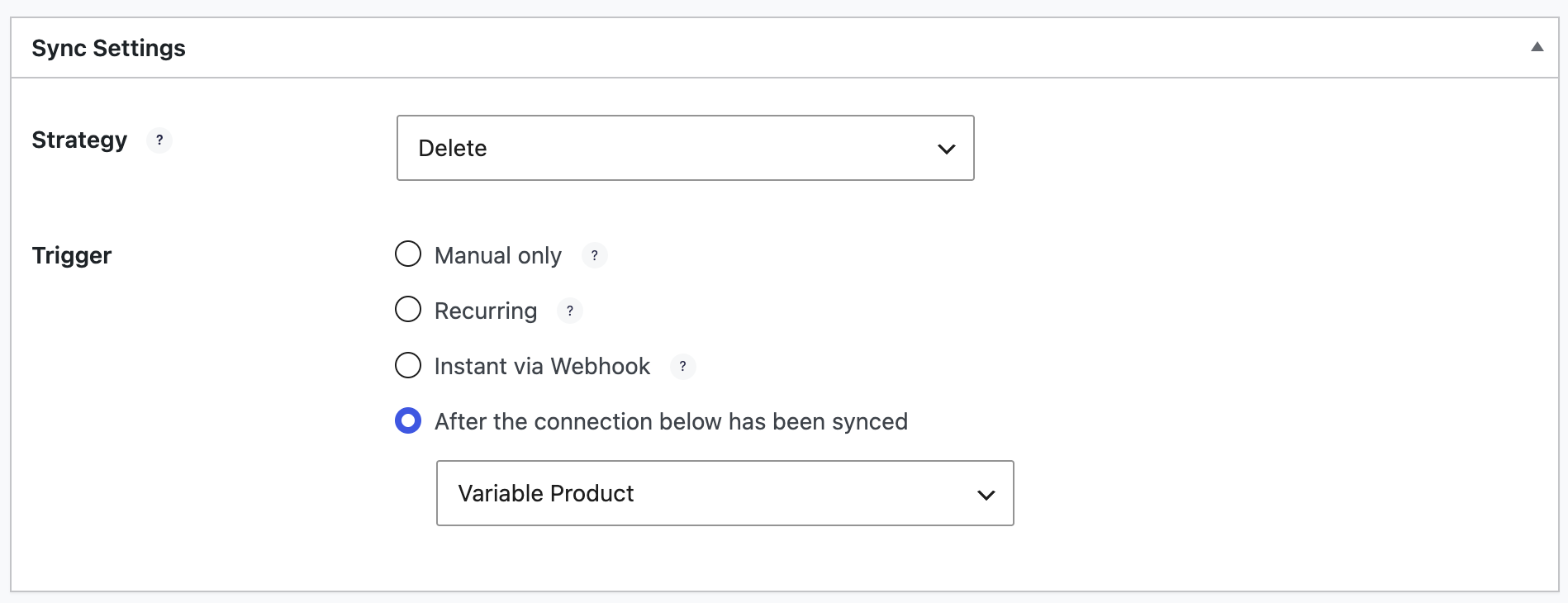
Both options are located in the Sync Settings section, in the last part of your connection:
The new Delete import strategy
Until now, the plugin offered three import strategies: Add, Add & Update, and Add, Update & Delete. With Add, Update & Delete, the deletion concerns the content that no longer exists in your Airtable table: during the import, the plugin removes from WordPress the entries that have been erased in Airtable.
The new Delete strategy works the other way around: it deletes from your WordPress site the content that is present in the Airtable table. Instead of importing the records, the connection uses the table as the list of what to remove.
This is useful when you want to remove a whole set of imported content from WordPress in one synchronization, without having to delete it entry by entry.
The Delete strategy removes content from your WordPress site. Before synchronizing, double-check the table and the filters used by your connection to make sure it only targets the content you really want to delete. Your Airtable data itself is not affected: Air WP Sync is a one-way sync from Airtable to WordPress.
The "Delete attached media automatically" option
Along with this new strategy, a new option named "Delete attached media automatically" is also available. When it is enabled, the media attached to the deleted content (such as its images) are removed from your site at the same time.
Use this option with care. If the images of a deleted article are also used in another article, deleting them can cause problems: the other article will lose its images. Enable this option only when you are sure the attached media is not reused elsewhere on your site.
The new trigger: "After the connection below has been synced"
Alongside the Manual, Recurring, and Instant via webhook triggers, you can now choose "After the connection below has been synced". This trigger lets you chain your connections: select another connection, and the current connection will start synchronizing automatically as soon as the selected one has finished.
Example: sync your categories before your posts
Chaining connections is particularly handy when the order of synchronization matters. A typical case is the category hierarchy: for your posts or pages to be assigned to the right categories, the categories must be synchronized first.
With this trigger, the setup becomes simple:
-
Create a first connection that imports your categories (see How to create WordPress taxonomies from Airtable with Air WP Sync?).
-
In your posts or pages connection, choose the trigger "After the connection below has been synced" and select the categories connection.
Now, every time the categories connection runs, the posts connection follows automatically: the hierarchy is in place before the content arrives.
Get Air WP Sync
Take full control of your Airtable to WordPress synchronization: chain your connections, clean up your content, and keep your site always up to date with Air WP Sync.
Discover Air WP Sync →