How to use Link to another record field type with Air WP Sync
In Airtable, the Link to another record feature allows you to establish powerful data relationships. You can create connections between fields, records, and perform calculations seamlessly. Our Air WP Sync plugin supports the Link to another record functionality in Airtable.
Please note that we only support one level deep in "Link to another record" fields.
To set it up, follow these simple steps.
In Airtable
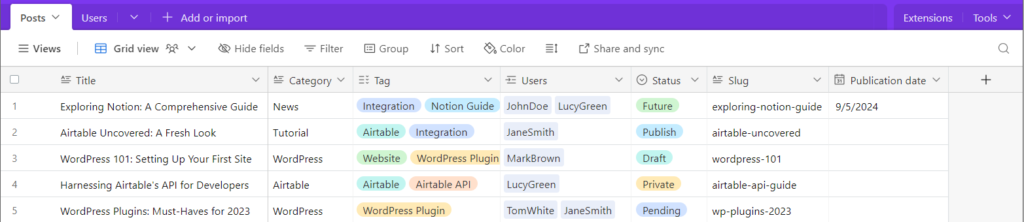
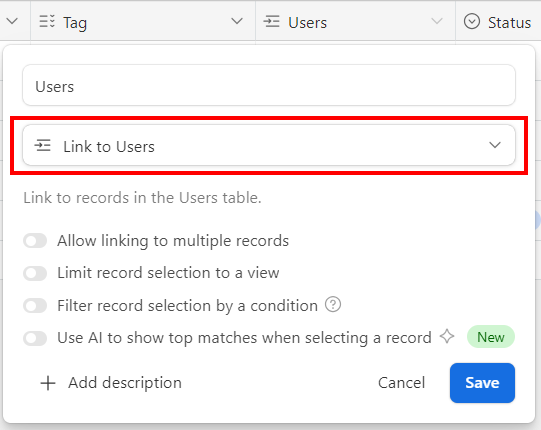
First, you need a Link to another record field in your Airtable table. For these examples, we'll link a Users table to a Posts table, as shown in the screenshots below:
In Air WP Sync Pro or in Air WP Sync
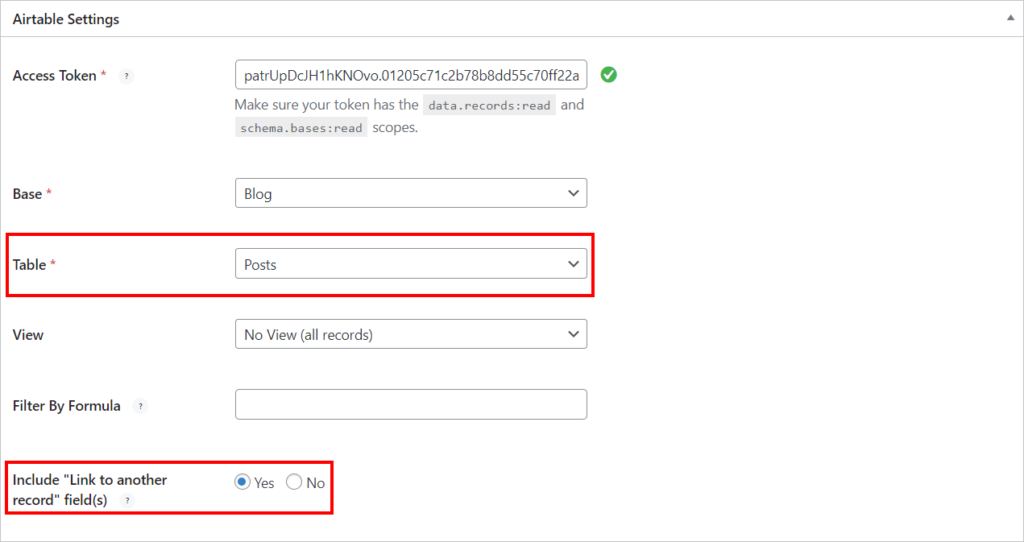
In the plugin, you will need to allow including Link to another record field(s):

Mapping with a "Link to another record" field might significantly increase synchronization time.
After it's done, in the mapping settings, each Link to another record field creates a group in the selection list (→ Relationship field name).

To use it in the best way, here are 2 examples of usage below.
Synchronize Post with Users
Have you ever wanted to import multiple posts into WordPress while assigning them to different Authors? Our plugin allows you to do that.
In this example, we'll see how to synchronize posts from Airtable, assign them to users, and set their status. After using the functionality, you can assign each user to a post author.
To do so, follow these steps.
Step 1: Airtable settings
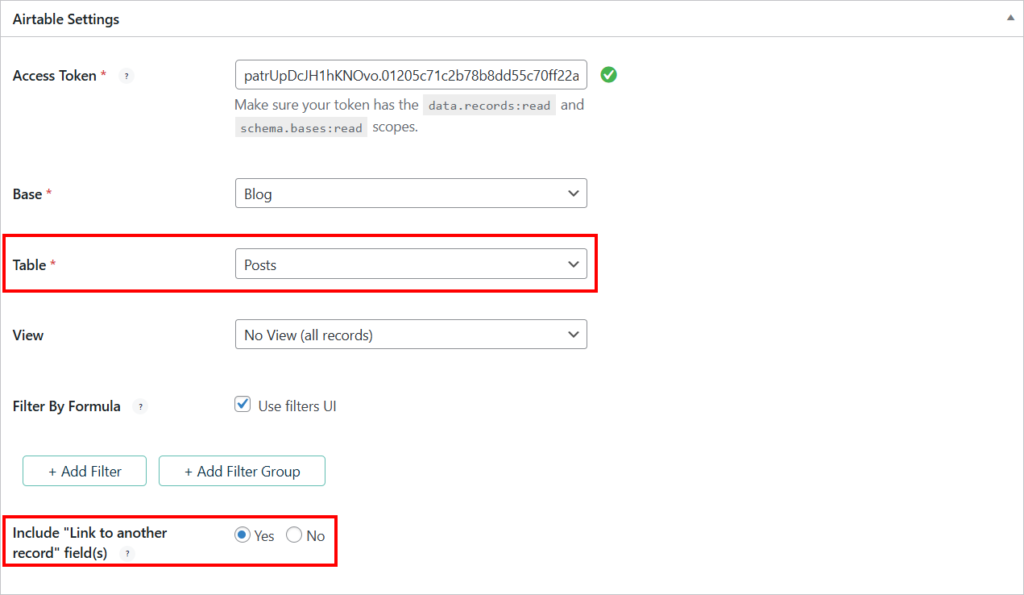
Within the settings, ensure you've chosen the main table, not the linked table. After selecting the main table, fields from the linked table will become available in the mapping selection list.
Step 2: Field mapping
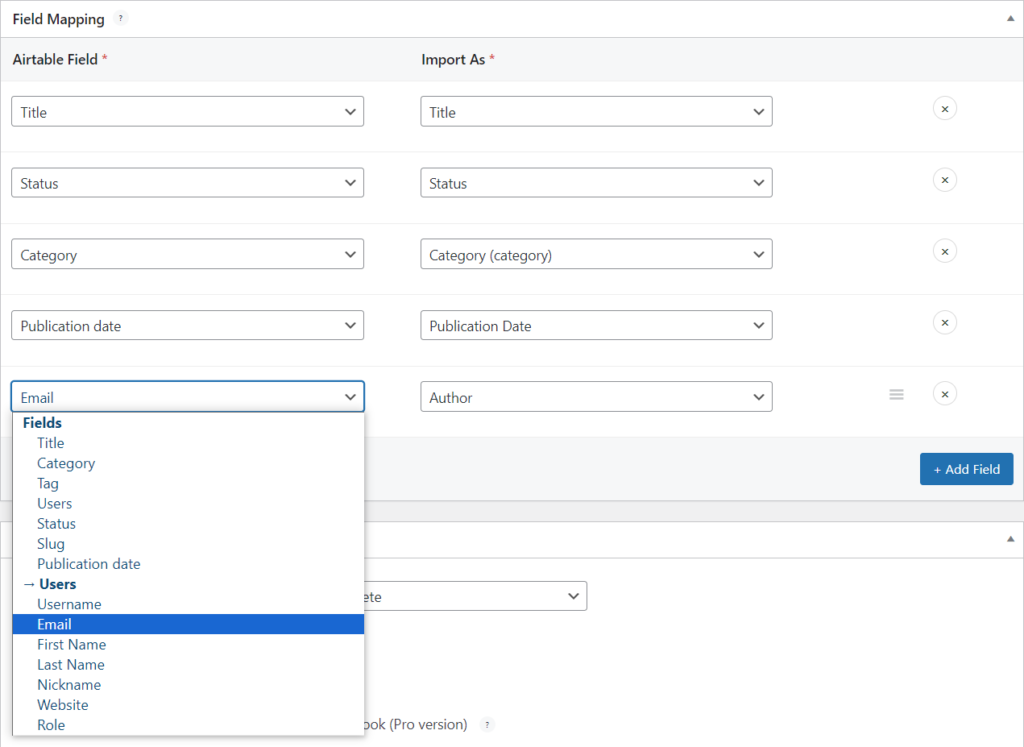
The mapping allows you to find the data from the linked table. You can now map the email with a Post Author.
Step 3: Synchronize
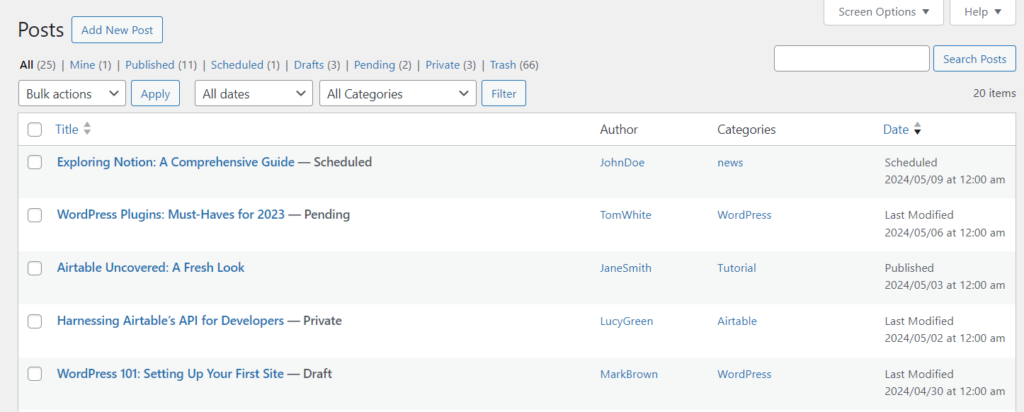
After completing your mapping, synchronize everything — you now have all your posts with their dedicated Author!
Link multiple records to ACF Repeater field
Step 1: In Airtable
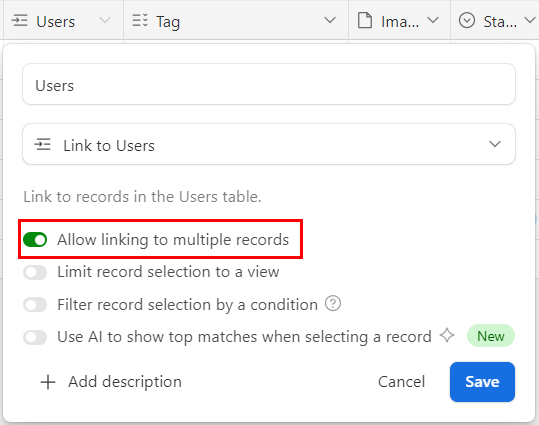
Do not forget to set up the linked field as shown in this screenshot:
Step 2: In Air WP Sync Pro+
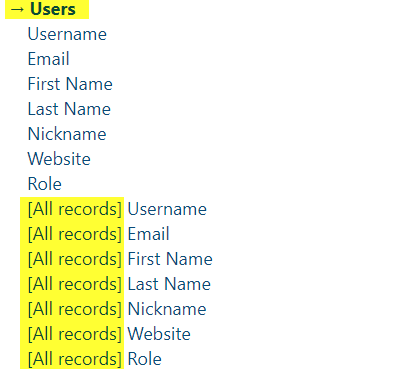
With Air WP Sync Pro+ and ACF Pro, you have access to all entries linked by using [All records] Field Name.
So, you can now use an ACF Repeater field to display data from your linked base.
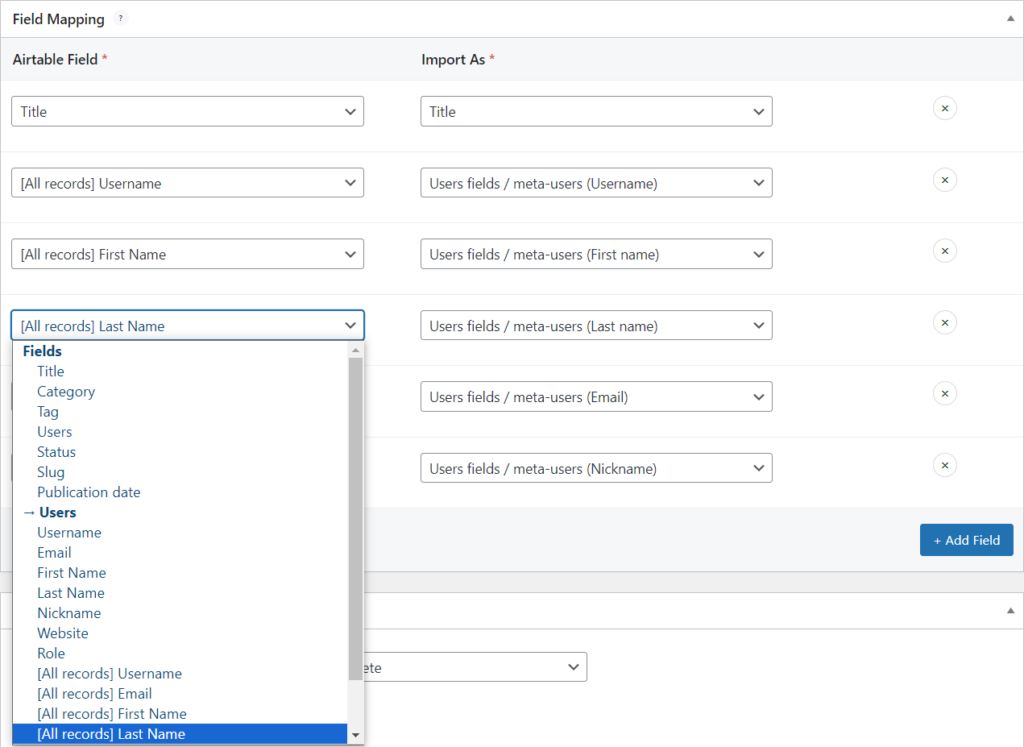
When mapping with an ACF Repeater field, you can only select Airtable fields prefixed with [All records].
The fields prefixed with [All records] allow you to access all the entries linked, while the fields simply linked (→ Relationship field name) give access only to the first entry linked.
Step 3: With ACF Pro
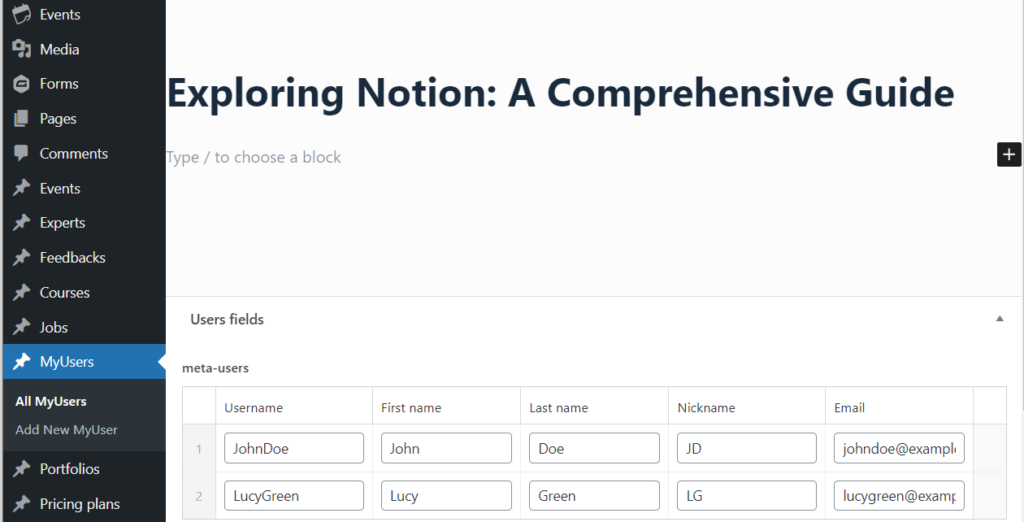
Create a Custom Post Type with ACF where you want to display your Users information with a Repeater field.
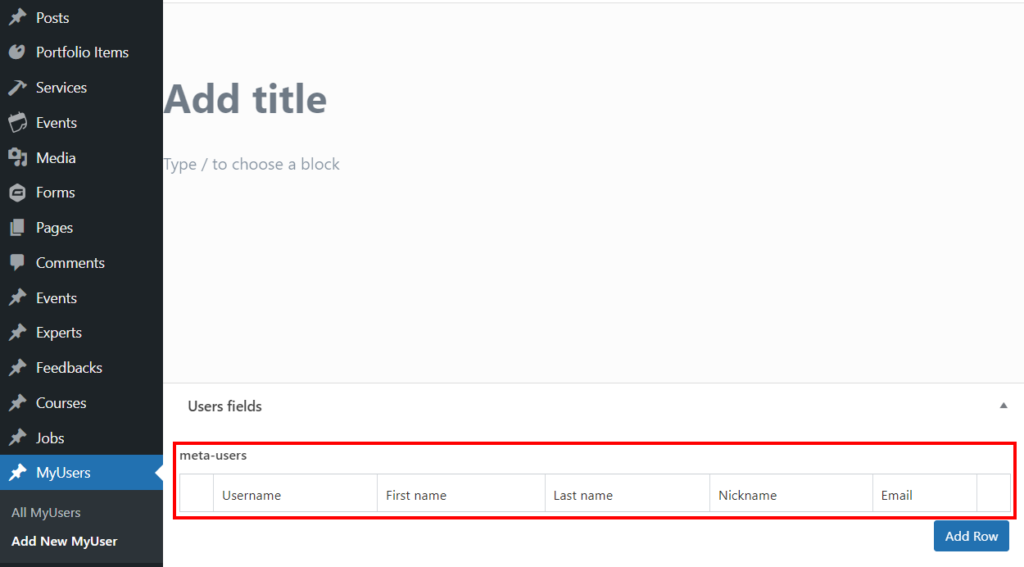
Step 4: Connection editing
Back in the Air WP Sync Pro+ plugin, again, make sure you selected the main table, not the linked one.
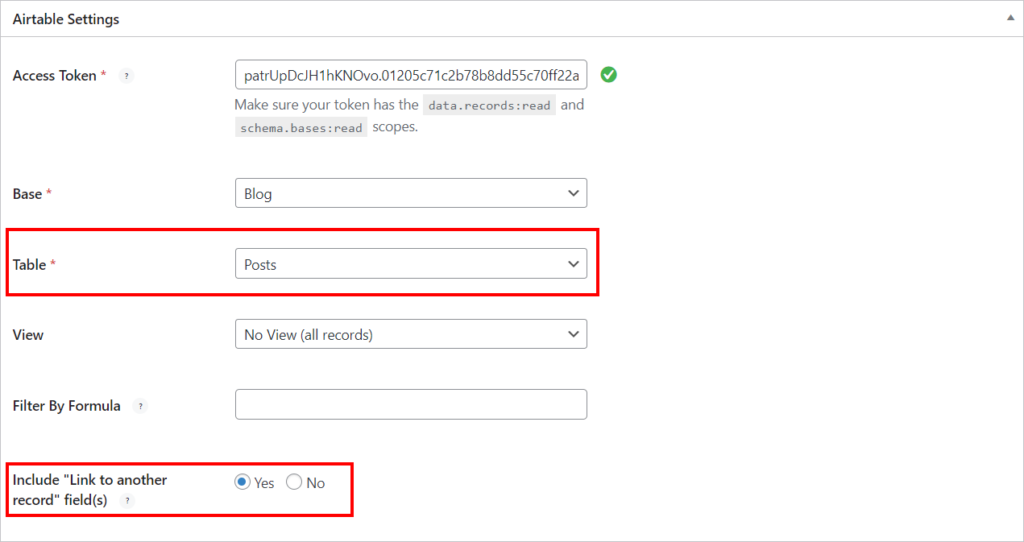
Step 5: Field Mapping
Map your linked records with ACF properties.
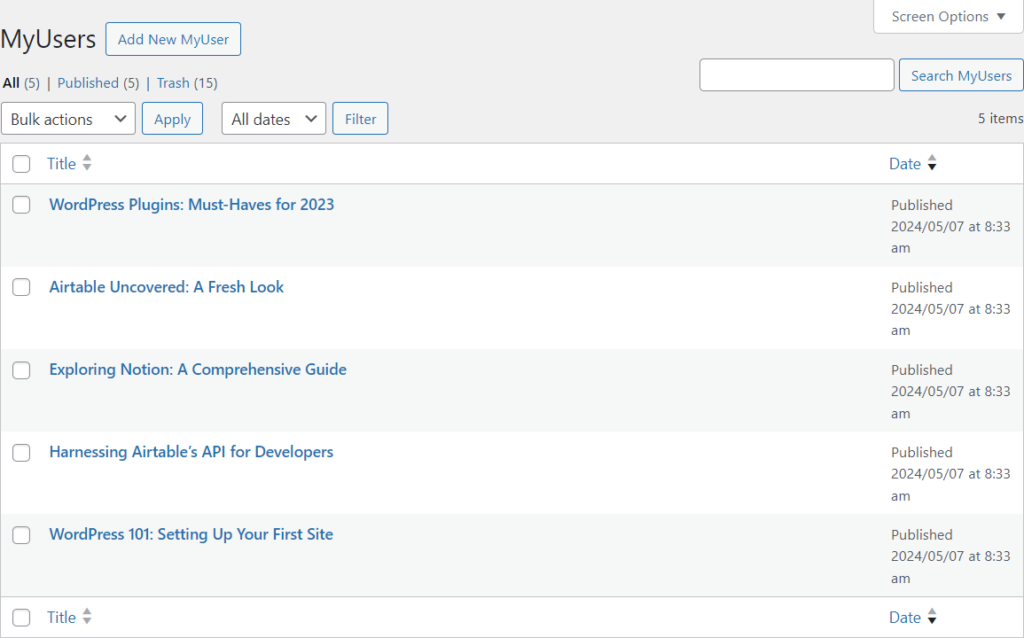
Result
This will allow you to display every information from your linked records!
Link Multiple Records to ACF Taxonomy Field
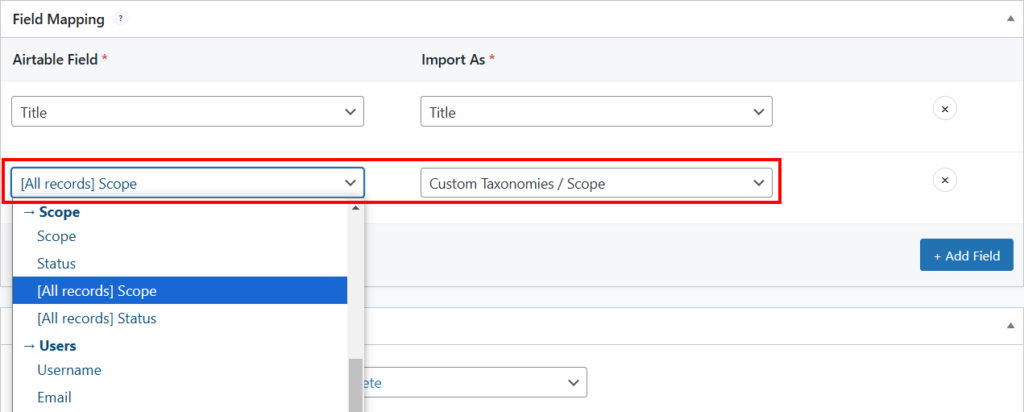
With Air WP Sync Pro+, you can now use an ACF Taxonomy field to display data from your linked base. It works similarly to the Repeater field. When mapping with an ACF Taxonomy field, you can only select Airtable fields prefixed with [All records].

Step 1: ACF Setup
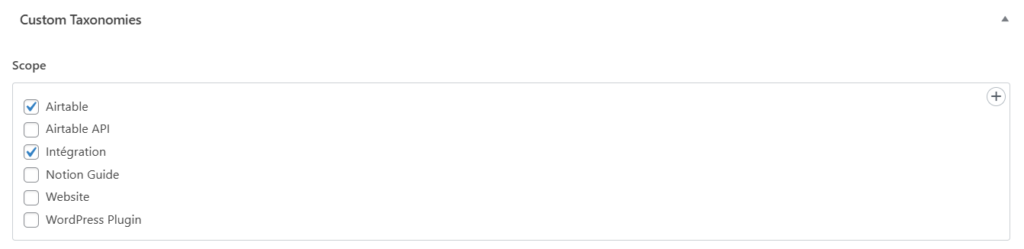
Set up a Taxonomy field where you'll import your Link to another record scope.
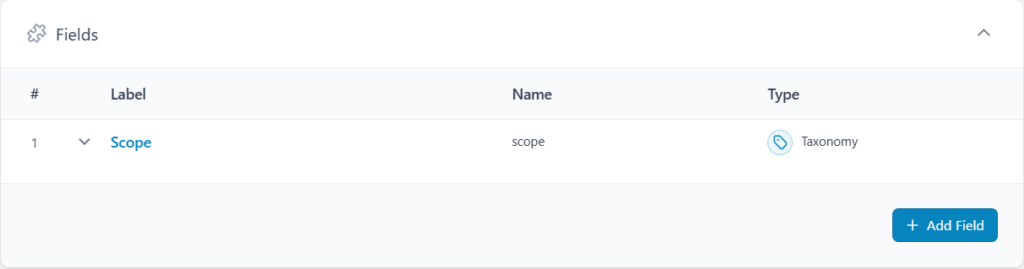
For the field setup, select Create Terms option, choose Multiselect or Checkbox for the Appearance, and activate Allow Null option.
Step 2: Connection editing
Back in the Air WP Sync Pro+ plugin, make sure you select the main table, not the linked one, and select the option Include "Link to another record" field(s).
Step 3: Field Mapping
Map your linked records to your ACF Taxonomy Field.
Result
This will allow you to display all the information from your linked records!