Do you want to import CSV files and turn them into Notion databases?
This guide walks you through the process step by step. You will learn the different import methods, key best practices, and how to automate the process to save time. Whether you need to copy data from spreadsheets or merge files into existing databases, you’ll have everything you need to get started.
How to import CSV data into a Notion database ?
Notion offers two main ways to import CSV data. You can create a new database from a CSV file or merge new data into an existing database. Both methods work even on the free plan, making it easy to import and organize your content. Here is how each method works.
Import a CSV as a new Notion database
The easiest option is to import an entire CSV file as a new database into your Notion workspace.
- Inside a Notion page, type /csv or click the three dots menu on the top right corner and select Import.
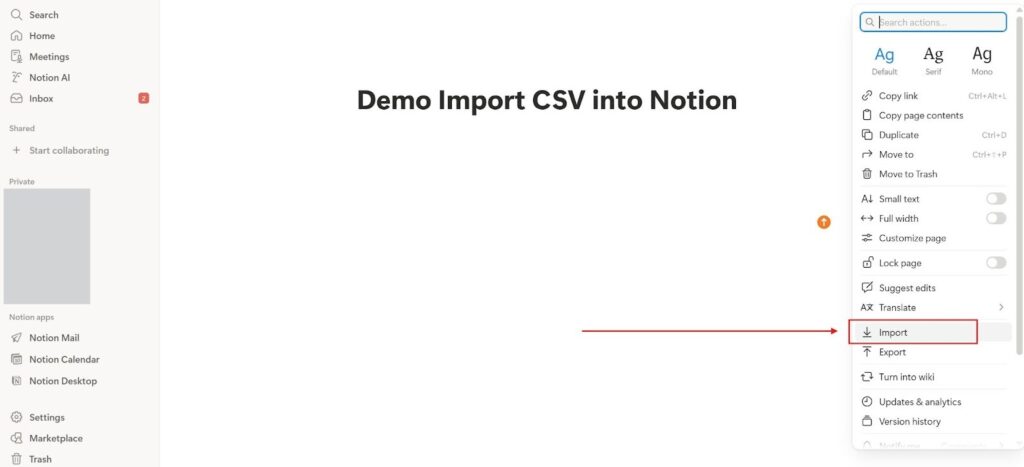
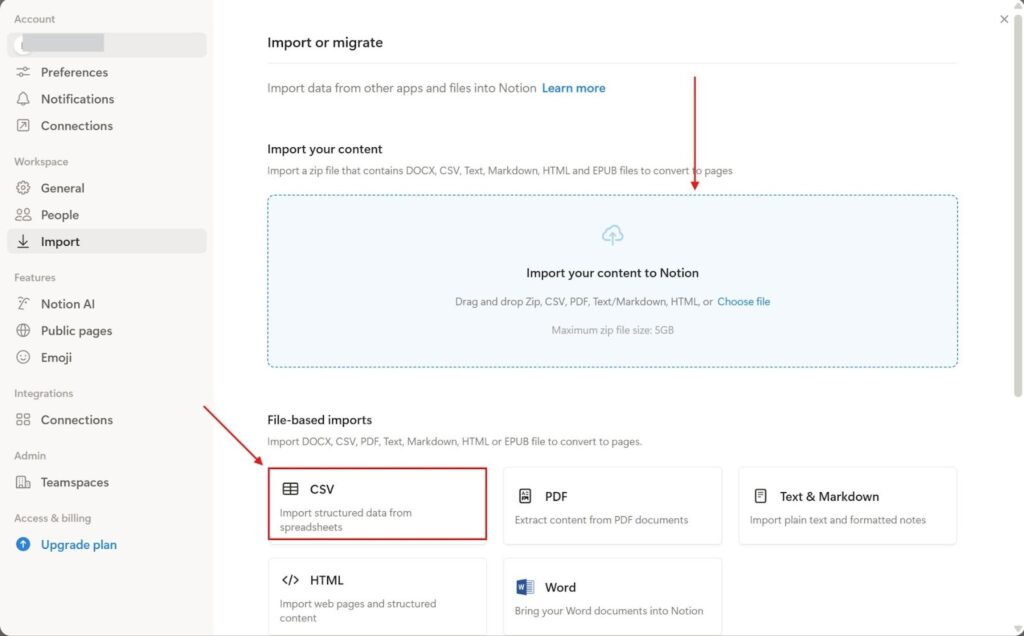
- A window will open with several import options. You can drag and drop your CSV file directly or click CSV in the “File based imports” section and upload the file from your device.
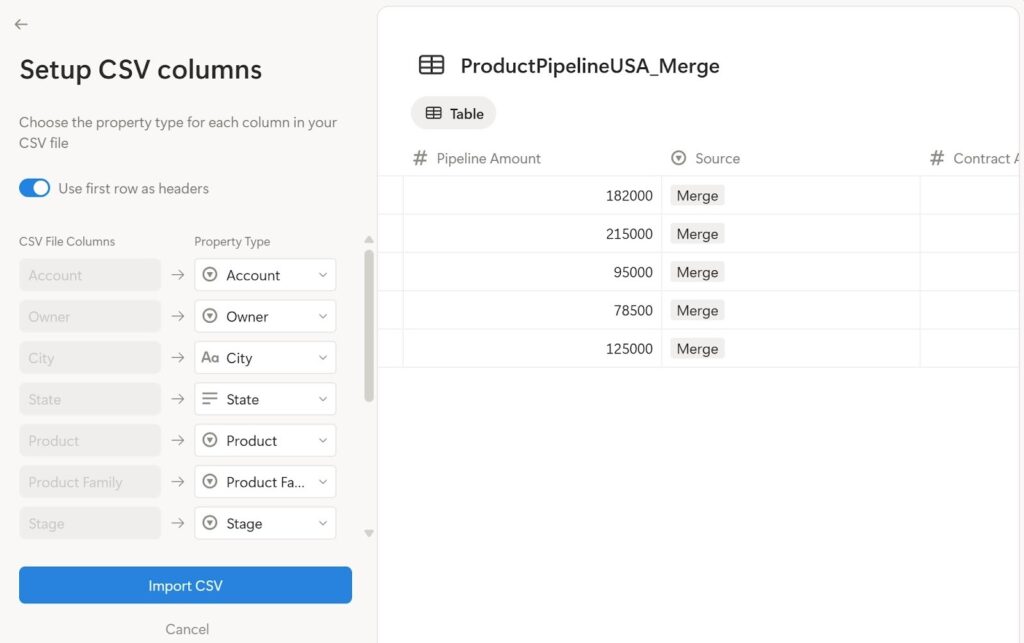
- Click the “Map CSV headers” button to configure import settings. Check whether your file has a header row or not. Then select the appropriate property type for each column in your spreadsheet.
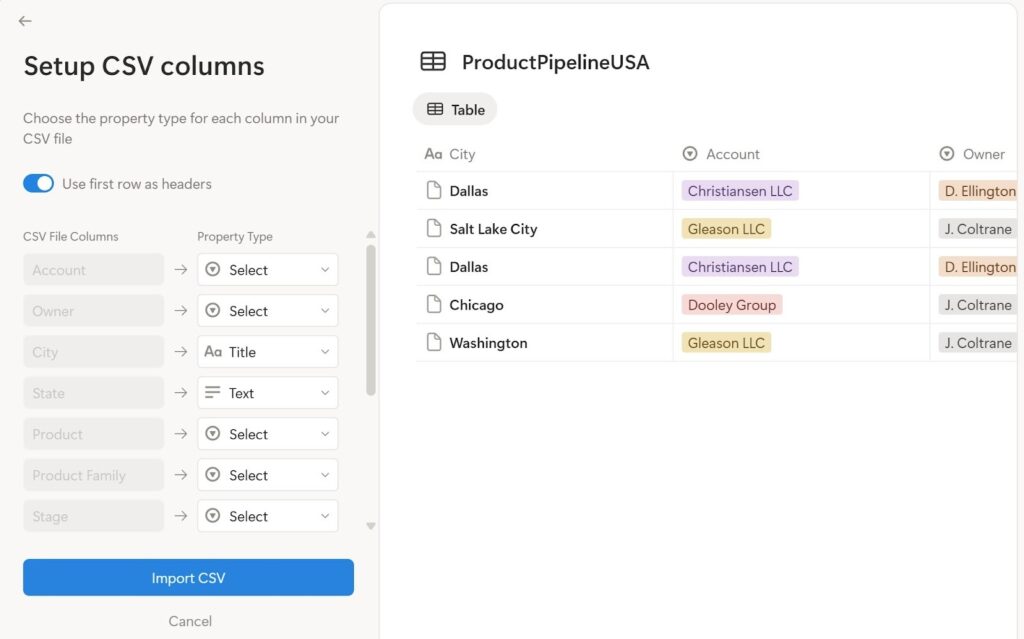
- Click Import CSV to complete the process. If everything is configured correctly, your imported database will appear in Notion workspace.
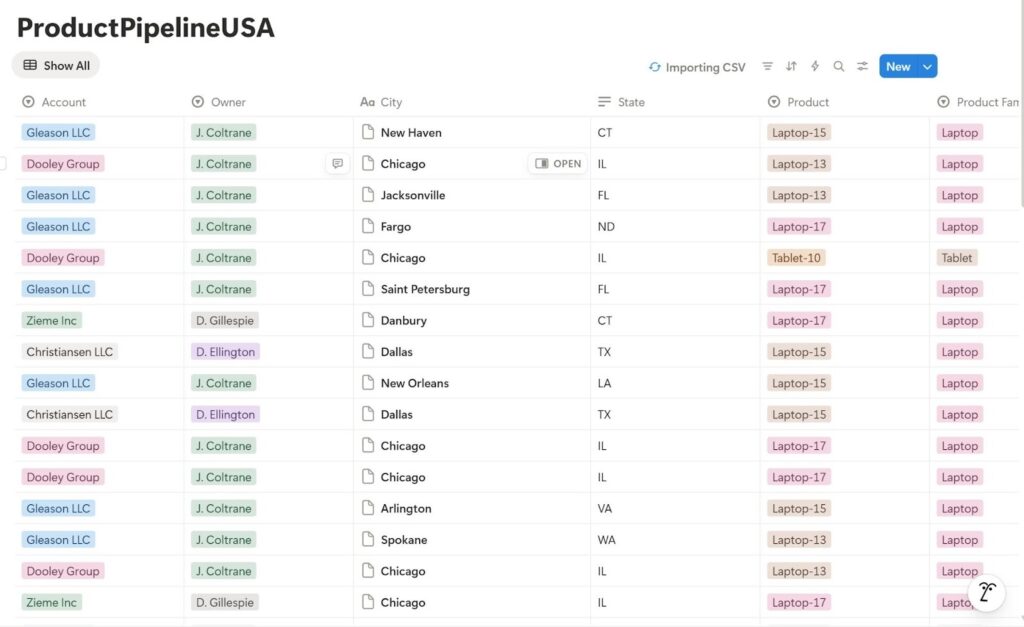
Important note: Header configuration is critical for reliable imports. Take the time to map your columns properly.
Notion also includes native connectors for many platforms such as Google Docs, Trello, and Evernote. If your data comes from these tools, you can often import it directly using built in Notion integrations.
Merge CSV with existing Notion database
Sometimes your goal isn’t to import a CSV file as a new database. In some cases, you just want to add new data to an existing database without starting over. The merge option lets you import a CSV file directly into an already created Notion database. The process is very similar to the previous one.
- Click the three dots menu at the top right of your page. Choose Merge.
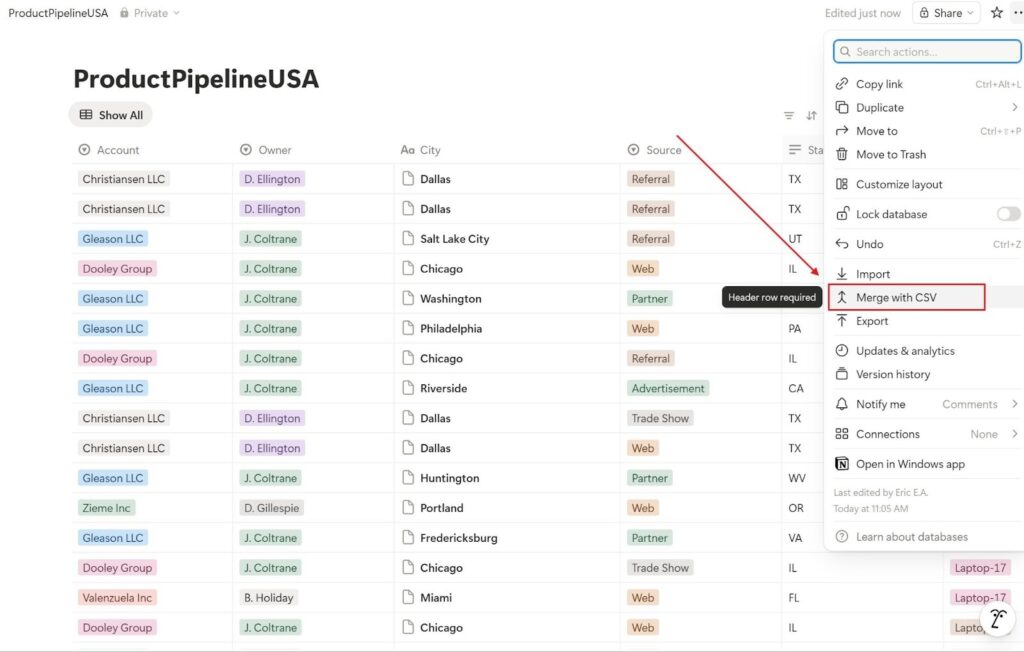
- Select your CSV file containing the new data. You must have a header row. Upload the CSV file and configure the headers as described above. Then click Import to finalize the merge.
- Your new rows are now added to the Notion database.
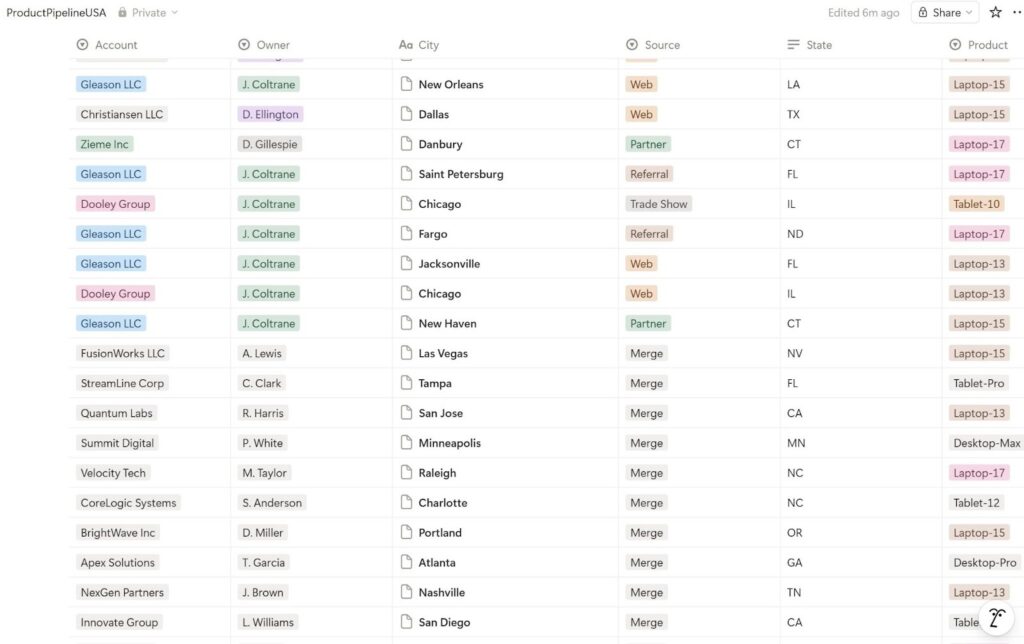
Note: The merge adds all rows from the new CSV file to your database. The merge doesn’t check for duplicates and doesn’t replace matching rows. Even if a row with the same title or information already exists in your database, Notion will create a new entry instead of updating the existing one. Also make sure you have the same column headers and Notion properties to avoid import errors.
Best practices for importing CSV files into Notion database
To avoid import errors and save time, follow these simple rules.
Structure your file correctly
Place your column headers on the first row. Notion relies on this row to identify your data and create your database properties.
Notion recommends encoding your CSV file in UTF-8. This standard encoding helps you avoid display issues, especially with accents and special characters.
Check your data formats
Notion imports dates in MM/DD/YYYY format. If your dates use a different format, adjust them before exporting from your external tool or reformat them after importing into Notion.
If a column mixes text and numbers, Notion will default to “text” type to avoid data loss. Consider standardizing your data beforehand or reworking your database after import.
Organize your columns properly
Notion uses the first text column as the primary identifier for each row. Make sure the first text property contains the most important information
Advanced: Automating data imports into Notion
You have now seen the two main ways to import data into Notion. You can take things further by automating full workflows.
For example, if you collect responses through web forms, manually importing data into Notion each time quickly becomes repetitive and time consuming. Manual copy-pasting is not only frustrating but also increases the risk of errors. Automation helps improve efficiency and saves valuable time.
Several solutions allow you to automate Notion data imports.
Notion native integrations
Notion provides a large ecosystem of native integrations that allow you to export and import data from CRM platforms and productivity tools. These integrations cover most business needs and are easy to configure. It’s a simple and intuitive way to import and organize your content in Notion.
Plugins and add-ons
At WP connect, we specialize in developing custom plugins and Add-Ons to sync data and integrate no-code tools.
We have several products that automatically import your data to Notion:
Gravity Forms to Notion: With this add-on, all your Gravity Forms submissions are automatically synced with your Notion workspace. You can track responses and speed up submission processing directly in Notion. For your teams, it’s an essential asset to collaborate, delegate, and manage with a global view.
WPForms to Notion: This module works the same way as the previous one, except it’s specifically designed for WPForms. That’s also what makes our solutions strong. They’re custom-built for each platform to maximize their effectiveness.
Increase productivity with Notion and WordPress
Automate content management and publishing on your WordPress site directly from your Notion interface. Simple and easy integration.
API & Webhooks
Notion offers the flexibility to automate and perform imports using its API. This may seem technical at first glance, but it’s not, especially if your business tool provides complete documentation on using the API.
What are the benefits of importing CSV to Notion?
Use cases vary by company and their tools. But importing CSV files into Notion databases offers several concrete advantages.
Running directly on the cloud, Notion is an excellent tool for centralizing your data. No more sending different versions of the same CSV file across your team. No more multiple copies of the same file with different information. You have a central file that multiple people can edit in real time. Every change is instantly visible to the entire team.
This reveals a second major advantage: collaboration and flexibility. You can add comments, filter and organize your data according to your needs, integrate the file into a more complete workflow, and boost productivity.
If you’re just starting to use Notion, importing also allows you to not start from scratch. Simply import your existing data and start working right away. This saves you from having to copy all your data and format your database manually.
Final thoughts
Importing CSV files into Notion is a simple process that unlocks powerful ways to organize and centralize your data. Whether you are creating a new database or enriching one, Notion provides flexible tools to migrate your data efficiently.
If you work with recurring data imports, automation is a smart investment. Native integrations, no-code plugins, and API connections can save significant time and reduce manual errors. You can even export Notion content to create WordPress posts and pages for seamless content publishing.
FAQ
What is Notion?
Notion is a powerful all-in-one digital workspace that claims 20 million users worldwide. This versatile platform combines various collaborative tools including note-taking, task management, project management, file storage and sharing capabilities. The platform offers different views like table, kanban, calendar, timeline and much more. What makes Notion special is its flexibility and no-code approach. You can create custom workflows, build databases, organize information, and collaborate with teams effectively, all within one interface. Anyone can create sophisticated organizational systems without technical skills. From startups to large enterprises, the platform serves as a central hub for productivity and information management.
CSV import to Notion failed: what to do?
Your import can fail for several reasons. Here are common causes and how to fix them.
CSV file size too large: If your CSV file is very large, the import may fail or become difficult to process. In that case, split your file into smaller CSV files and import them separately. Make sure each file keeps the same column headers and structure to avoid mapping issues in Notion.Incompatible data format: Some data types can cause problems. Make sure to choose the right format when configuring headers during import.
Why and when should you import CSV databases into Notion?
Data export and import are very common in modern work environments. Companies frequently move data between tools to simplify processing, organization, and collaboration.
For example, importing customer requests into Notion allows you to assign tasks to your teams while having suitable views for tracking. Here are some common use cases where companies import data to Notion workspace for more flexibility:
- Project management
- Event registration management
- Web form submissions, etc.
Beyond manual import, if you regularly move data to Notion, it’s wise to automate the process. You work faster and avoid errors.