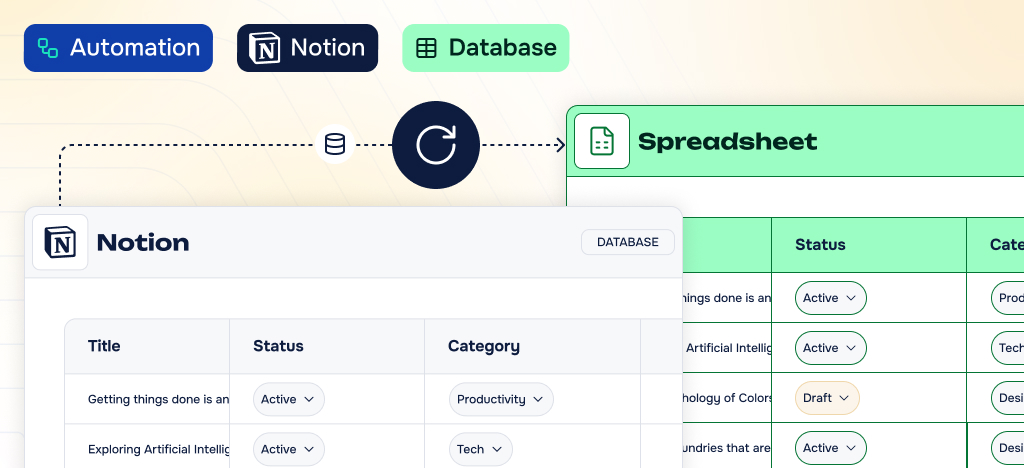
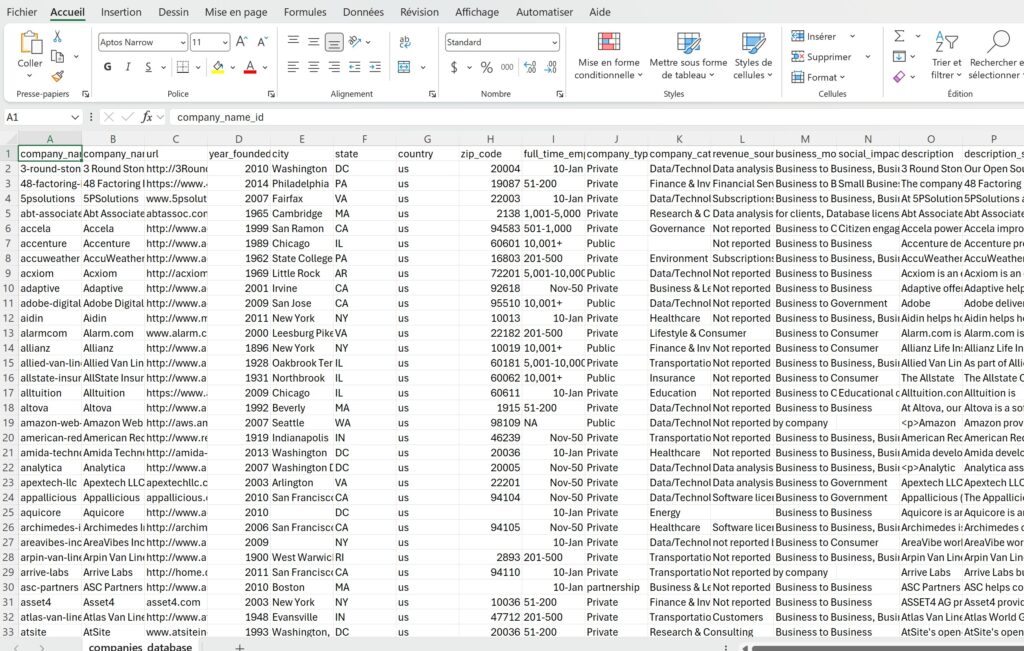
Notion is a powerful tool for organizing and centralizing your data. But when it comes to complex analysis, advanced formulas, cross-referencing, and report building, Excel remains the gold standard.
In this guide, you will learn how to export a Notion database in just a few clicks, in CSV or Excel format.
At WP connect, we specialize in building integrations for WordPress and no-code platforms. At the end of this tutorial, we also introduce our Notion WP Sync plugin to automate the export of your Notion data directly to your WordPress site.
Key takeaways
This guide covers step by step:
Exporting a Notion database to CSV and Excel
An overview of a WordPress plugin for syncing your Notion data to your website
You will need a Notion account to follow this tutorial. A WordPress site is only required for the last section, where we cover Notion automation to publish your pages and databases directly to your WordPress site.
How to export a Notion Database to Excel ?
This guide walks you through exporting your Notion data to CSV/Excel in 5 simple steps.
Step 1: Log in to your Notion account and open the page containing the database you want to export.
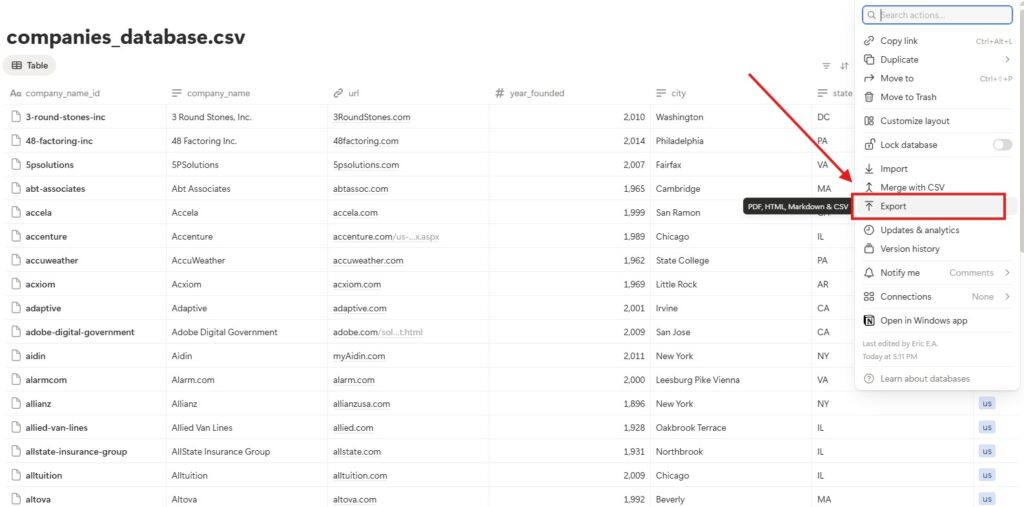
Step 2: Click on the three-dot menu in the top right corner of your database, then select “Export.”
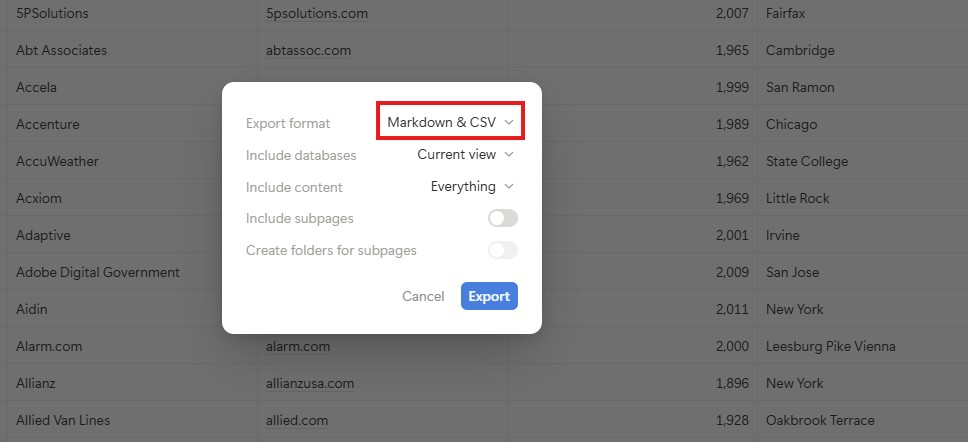
Step 3: In the export options, select “Markdown & CSV.” If you want to include subpages, enable the corresponding option.
Step 4: Click “Export.” Notion generates a ZIP file that you can save to any location you choose.
What does the ZIP File contain?
The exported file typically contains several files:
A Markdown file with the page content
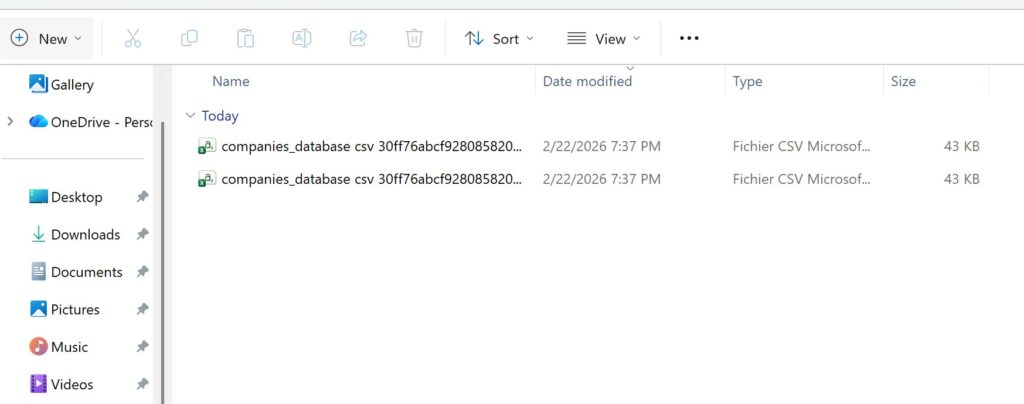
Two CSV files: one with the database structure, and one with the full page content
If you exported the database only (as in our case, for example), both CSV files will be identical.
Step 5: Open the CSV File in Excel or Google Sheets
Double-click the CSV file to open it in Excel. In most cases, Excel automatically detects the format and displays a clean, readable table. You can also import the file directly into Google Sheets.
Note: Depending on your computer’s regional settings, your data may appear in a single column. To fix this, go to the “Data” tab, click “Text to Columns” and select the comma as the delimiter.
What are the limitations of exporting Notion to Excel/CSV?
Exporting Notion to Excel gives you a workable CSV file, but there are a few limitations to be aware of.
First, note that some information does not export correctly. Relation properties export as plain text (page name followed by its Notion URL), with no link to the original database. Depending on your needs, you can create a custom formula to export only the name of an associated page instead of just having its Notion URL in text form in your Excel export.
Multi-select fields are collapsed into a single cell, which makes filtering more difficult. Formatted text, colors, and page layouts are also lost in the process. You may need to reformat your data entirely before it becomes usable.
If your Notion database uses certain advanced features of the platform as mentioned above, a direct export to Excel/CSV may not meet your expectations.
Go further: automate your Notion export
Exporting to CSV or Excel works great for one-time analysis. But Notion is also widely used as a content management tool: writing articles, managing listings, product pages and more. This makes it the center of many repetitive, structured workflows.
If your workflow involves regular data synchronization between Notion and other platforms, automation quickly becomes essential. That is exactly what our Notion WP Sync plugin does. This no-code integration automatically syncs your Notion databases to your WordPress site, without Zapier or Make.
Best practices before exporting Notion to Excel/CSV
A few simple habits before exporting will help you get a clean, usable file.
Work from a dedicated Table view set up specifically for export
Make sure all relevant properties are visible in that view
Clean up your values: limit duplicates, unnecessary capitalization, and extra spaces
Check key data types (dates, numbers, checkboxes) to avoid surprises in Excel
Lock your structure before exporting: avoid renaming columns after the fact if the file will be reused or automated
Export regularly to keep a copy of your data outside Notion
When to export Notion to Excel or CSV: 3 common use cases
Exporting Notion to Excel is useful in many real-world situations. Whether you need to run cross-analyses, share information, or integrate your data into other tools, here are 3 common use cases where exporting Notion to Excel or CSV makes a real difference.
Managing your content in Notion?
Discover how to automatically sync Notion and WordPress with Notion WP Sync.
Backing up your Notion data outside the platform is one of the most common reasons to export. It is a simple best practice to keep a copy of your critical information. In case of accidental deletion, access issues, or a plan change, you always have a fallback. You can also export Notion databases and pages to:
Archive completed projects
Keep a history of your data
Secure your information before switching tools
Importing Notion data into a CRM
Notion makes it easy to collect and organize information through forms and databases : contacts, leads, opportunities. Once your data is structured in Notion, exporting it as CSV lets you import it directly into your CRM without manual re-entry. For teams handling large volumes of data, this is especially useful to:
Sync a prospect list
Update contact records
Prepare an email campaign
It also helps you consolidate your KPIs and results alongside your commercial data, making it easier to produce more complete reports.
Reporting and Business Intelligence
Notion is not specifically designed for data analysis or business intelligence. For example, if your clients work in Excel or Google Sheets, a CSV export lets you share a progress update or deliver a report quickly. No need to add them to your Notion workspace.
Similarly, if you use or are migrating to a tool such as Power BI, Tableau, or Looker, exporting Notion data to CSV is the starting point. You can easily structure and export your Notion data to use it in your BI tool.
FAQ
How to export a Notion table to Excel?
Notion natively exports your databases in CSV/Markdown format, which is fully compatible with Excel. Open your Notion database, click the three-dot menu in the top right corner, and select Export > Markdown & CSV. Unzip the downloaded file and open the CSV in Excel.
Notion export not working: what should you do?
If your Notion export is not launching or seems stuck, start by checking your internet connection and refreshing the page before trying again. For large databases, the export may take several minutes. You will receive an email notification once the export is complete.
A few common issues can also appear after export. If your CSV opens as a single column in Excel, go to Data > Text to Columns and select “Delimited”.
If you notice broken characters or garbled accents, open the file with UTF-8 encoding in Excel or Google Sheets.
Finally, if some columns are missing, check that all properties are visible in your Notion view before exporting.
To export your entire Notion workspace, refer to the official Notion documentation.
You liked this article ? Share it on
Want to know more? Check our articles!
Tutorials
How to import CSV into Notion database
NotionWordPress
Guides
Data automation: a comprehensive guide for businesses
To provide the best experiences, we use technologies like cookies to store and/or access device information. Consenting to these technologies will allow us to process data such as browsing behavior or unique IDs on this site. Not consenting or withdrawing consent, may adversely affect certain features and functions.
Functional
Always active
The technical storage or access is strictly necessary for the legitimate purpose of enabling the use of a specific service explicitly requested by the subscriber or user, or for the sole purpose of carrying out the transmission of a communication over an electronic communications network.
Preferences
The technical storage or access is necessary for the legitimate purpose of storing preferences that are not requested by the subscriber or user.
Statistics
The technical storage or access that is used exclusively for statistical purposes.The technical storage or access that is used exclusively for anonymous statistical purposes. Without a subpoena, voluntary compliance on the part of your Internet Service Provider, or additional records from a third party, information stored or retrieved for this purpose alone cannot usually be used to identify you.
Marketing
The technical storage or access is required to create user profiles to send advertising, or to track the user on a website or across several websites for similar marketing purposes.
To provide the best experiences, we use technologies like cookies to store and/or access device information. Consenting to these technologies will allow us to process data such as browsing behavior or unique IDs on this site. Not consenting or withdrawing consent, may adversely affect certain features and functions.
Functional
Always active
The technical storage or access is strictly necessary for the legitimate purpose of enabling the use of a specific service explicitly requested by the subscriber or user, or for the sole purpose of carrying out the transmission of a communication over an electronic communications network.
Preferences
The technical storage or access is necessary for the legitimate purpose of storing preferences that are not requested by the subscriber or user.
Statistics
The technical storage or access that is used exclusively for statistical purposes.The technical storage or access that is used exclusively for anonymous statistical purposes. Without a subpoena, voluntary compliance on the part of your Internet Service Provider, or additional records from a third party, information stored or retrieved for this purpose alone cannot usually be used to identify you.
Marketing
The technical storage or access is required to create user profiles to send advertising, or to track the user on a website or across several websites for similar marketing purposes.