
How to set default catalog visibility for products using Air WP Sync for WooCommerce?
Managing product visibility is an important part of running an efficient WooCommerce store. Not every product needs to appear everywhere in your shop: some items may be public, some may be searchable only, and others may be hidden from the catalog entirely.
WooCommerce provides several catalog visibility options that allow you to control where products appear across your store. When syncing products from Airtable using Air WP Sync for WooCommerce, you can also define the default catalog visibility applied to products during the import process.
This guide explains how WooCommerce catalog visibility works and how to configure the default visibility setting in Air WP Sync for WooCommerce.
Understanding WooCommerce Catalog Visibility Options
WooCommerce allows you to control where a product appears in your store through the Catalog Visibility setting.
These options determine whether the product is visible in:
- The shop page
- Category pages
- Search results
- Or only on the product page itself
Below are the four visibility options available in WooCommerce.
Shop and Search Results (Default)
This is the default WooCommerce visibility setting.
Products using this option will appear in:
- The shop page
- Product category pages
- Search results
- The product page
This is the standard setting used for most products in an online store.
Typical use case
Use this option for regular products that you want customers to easily find when browsing your store or searching for items.
Examples:
- Clothing
- Electronics
- Accessories
- Any product that should be fully visible across the store
Shop Only
When this option is selected, the product will appear in:
- The shop page
- Product category pages
- The product page
However, it will not appear in search results.
Typical use case
This option can be useful when you want products to be visible in your catalog but not easily discoverable through search.
Examples:
- Seasonal products
- Promotional items
- Products that should be browsed but not searched directly
Search Results Only
With this option, the product will appear only in:
- Search results
- The product page
It will not appear in the shop page or category listings.
Typical use case
This option can be useful for SEO or long-tail product pages that should be accessible via search but not displayed in the main catalog.
Examples:
- Products targeted for specific search queries
- Niche variations
- Supporting product pages designed for SEO
Hidden
Products set to Hidden will not appear anywhere in the shop catalog.
They will only be accessible through their direct product URL.
They will not appear in:
- The shop page
- Category pages
- Search results
Typical use case
This setting is commonly used for:
- Private products
- Special offers
- Client-specific products
- Hidden bundles or promotions
For example:
- Sending a private product link to a customer
- Creating exclusive products for specific clients
- Selling custom products through direct links
Setting Default Catalog Visibility in Air WP Sync for WooCommerce
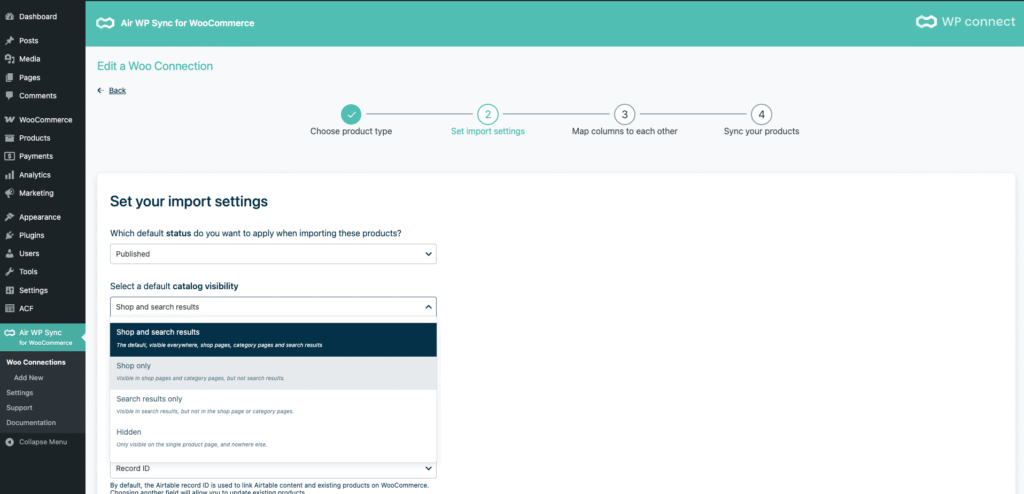
When importing products from Airtable using Air WP Sync for WooCommerce, you can define the default catalog visibility applied to products during synchronization.
This ensures that newly created products automatically receive the correct visibility setting without requiring manual changes in WooCommerce.
To configure the default visibility:
- Open your Air WP Sync for WooCommerce configuration.
- Navigate to the second step: Set import settings
- Locate the Default Catalog Visibility option.
- Choose the visibility option you want to apply by default.
- Save your settings.
Once configured, all newly imported products will automatically use this visibility setting unless it is overridden by specific product data.
Override visibility per product using the template
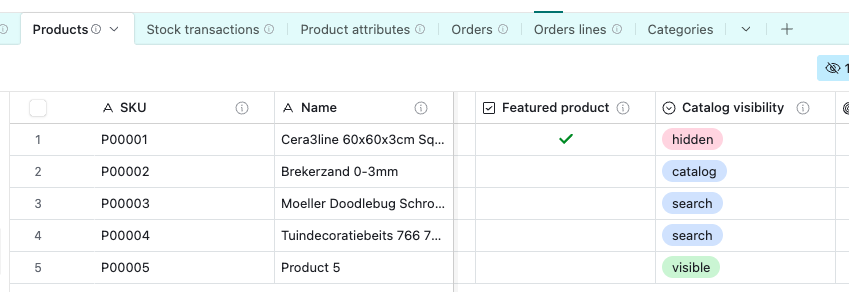
In addition to setting a global default visibility, Air WP Sync for WooCommerce also allows you to control catalog visibility per product directly from the template configuration.
This means you can dynamically define the visibility based on the data coming from Airtable.
For example, you have a field in Airtable (Catalog visibility) that determines whether a product should be:
- Visible in the shop
- Search-only
- Hidden
- Or fully visible in both shop and search
By mapping this field in your template, each product can automatically receive its own visibility setting during the synchronization process.
This approach is particularly useful when managing large catalogs or when different products require different visibility rules.
Best Practices for Choosing Catalog Visibility
Choosing the right catalog visibility setting can help you better organize your store and control how customers discover products.
Here are a few recommended practices:
- Use Shop and search results for most products
- This ensures products are easily discoverable and accessible through both browsing and search.
- Use Shop only for curated catalog experiences
- This can help highlight products within categories while reducing clutter in search results.
- Use Search results only for SEO-focused products
- Useful for products designed to capture specific search queries without overloading your catalog pages.
- Use Hidden for private or exclusive products
- Perfect for:
- Private sales
- Custom orders
- Limited-access products
- Perfect for: