
How to Sync Hierarchical Product Categories from Airtable into WooCommerce?
Air WP Sync for WooCommerce allows you to create and assign multi-level product category hierarchies in WooCommerce based on the structure you define in Airtable.
This means you can manage your entire category tree inside Airtable and sync it automatically to WooCommerce, including:
- Parent categories
- Child categories
- Sub-categories
- Full hierarchies (Level 1 → Level 2 → Level 3)
This guide explains how to structure Airtable and configure Air WP Sync for a clean and reliable import.
1. Prepare Category Fields in Airtable
To build a hierarchy, Airtable must contain one field per level of category depth.
Example fields:
- Category Level 1 (main category)
- Category Level 2 (sub-category)
- Category Level 3 (optional deeper level)
The field names do not matter.
Air WP Sync will detect their order based on how you map them.

2. Create a Formula That Builds the Category Path
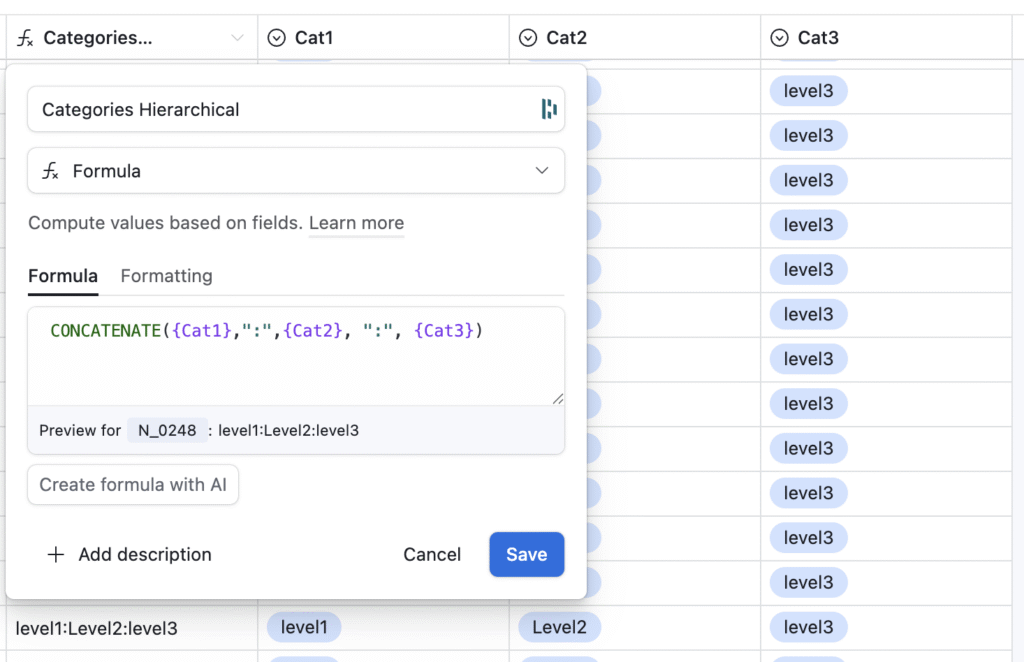
WooCommerce expects a single category path, so in Airtable you must create a formula that combines all levels.
Example formula:
CONCATENATE({Parent Cat}, “:”, {Child Cat}, “:”, {Sub child cat})
This produces a clean hierarchical string such as:
Food:Vegetarian:Gluten Free
If a level is empty, WooCommerce simply ignores it.
3. Map the Hierarchical Category Field
Go to your WooCommerce connection and open the Mapping:
First, delete the original category field that is mapped by default:

Then, use the new Hierarchical categories (from hierarchical names).
Map your Airtable formula field (e.g. Categories Hierarchical) to WooCommerce’s Hierarchical Categories field.

This tells the plugin:
- to read your category string,
- split it into levels,
- create missing categories,
- assign parent/child relationships automatically.
4. How the Hierarchy Is Created in WooCommerce
When syncing, Air WP Sync for WooCommerce will:
- Create Level 1 category (if it does not already exist)
- Create Level 2 category and attach it under Level 1
- Create Level 3 category and attach it under Level 2
- Assign the deepest category level to the product
WooCommerce will automatically display the entire category tree.
5. Products With Multiple Category Paths (Optional)
If a product belongs to several hierarchy branches, you must:
- Create a linked table in Airtable where each record represents a category path
- Use a rollup field to join all paths into a single field separated by |
Example:
Food:Vegetarian:Gluten Free | Drinks:Juice:Apple
Air WP Sync will interpret each path separately and assign all categories to the product.
6. Setup Complete
Your category structure is now fully managed in Airtable, and WooCommerce will mirror any hierarchy you define.
This workflow is ideal for:
- large catalogs
- frequent category structure changes
- non-technical teams managing data in Airtable
- multi-level product taxonomies
If you need help reviewing your Airtable fields or mapping, feel free to contact our support team.