
How to Schedule Product Publication using Air WP Sync for WooCommerce?
Managing product publication manually can quickly become time-consuming, especially when working with large catalogs or launching products at specific dates.
With Air WP Sync for WooCommerce, you can automate this process by scheduling product publication directly from Airtable, using a dedicated date field.
This allows you to prepare your products in advance and ensure they go live exactly when needed without manual intervention.
Step-by-Step Instructions
– Start with a Default Draft Status
When creating your first connection, set the default product status to Draft (or another non-published status).
This ensures that:
- Products are created in WooCommerce
- They are not published immediately
- You retain full control over when they go live
– Set the Publication Date in Airtable
Set up the publication date on the column “Publish on”
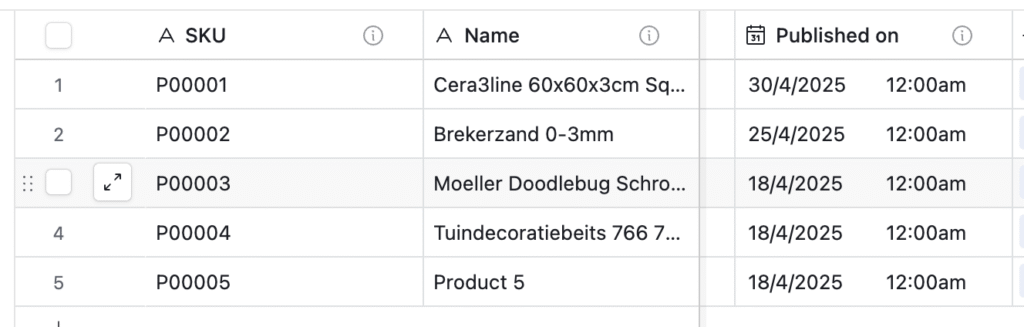
– Update Your Sync Connection
Go back to your Air WP Sync for WooCommerce configuration.
– Set the Default Status to “Scheduled”
Update the product status from:
- Draft → Scheduled
This tells WooCommerce that the product should be:
- Created now
- Published automatically at the defined date
– Map the “Published on” Field
In the field mapping section:
- Map your Airtable field “Published on”
- To the corresponding publish date field in WooCommerce
This step is critical, without it, WooCommerce won’t know when to publish the product.
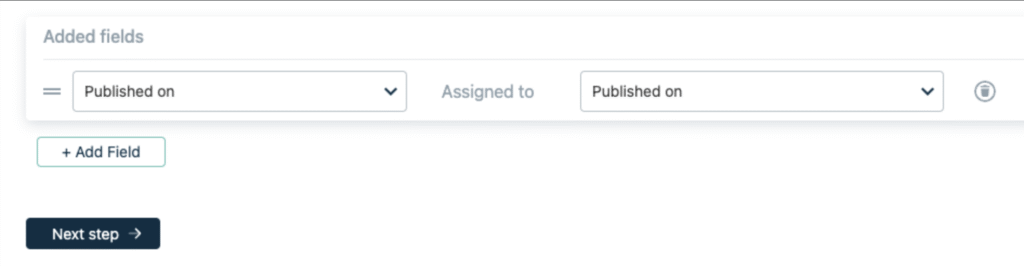
– Save and Run the Sync
Click Next, save your configuration, and run the synchronization.
Your products will now:
- Be created in WooCommerce
- Stay unpublished
- Automatically go live at the scheduled date
⚠️ The steps above apply mainly to users who are using a template version prior to 1.0.0.
If you are using version 1.0.0 or later, the process is slightly simplified:
- You can select “Scheduled” status directly during the initial connection setup
- However, you must ensure that:
- The Status field is properly filled
- The “Published on” field is correctly set in Airtable
Without these fields properly configured, the scheduling will not work as expected.
Need help to update your template ? -› click here
Best Practices for Scheduling Products
To get the most out of scheduled product publication:
Use consistent date formats
Ensure your Airtable field uses a proper date/time format compatible with WooCommerce.
Always double-check your timezone
Make sure that:
- Airtable timezone
- WordPress timezone
are aligned to avoid unexpected publishing times.
Test with one product first
Before syncing large batches, test your setup with a single product to confirm everything works correctly.
🚀 Automate Your WooCommerce Product Workflow
Stop manually managing product publication in WooCommerce.
With Air WP Sync for WooCommerce, you can control your entire product lifecycle directly from Airtable including creation, updates, and scheduled publishing.
By automating your workflow, you can:
- Schedule product launches in advance
- Keep your catalog always up to date
- Manage everything from a single source of truth
- Save time and reduce errors